Gorgias
Last updated: November 3, 2026
Connect Gorgias to Polar to report on your support tickets, for example by agent, channel or tag, in custom tables and dashboards.
Before you start
Your Gorgias account needs to have ticket data. Polar can't sync an empty account.
You need your Gorgias login email and access to your Gorgias REST API settings.
Connect Gorgias
In Polar, go to the Connectors page and search for Gorgias.
Click Connect to Polar Analytics.
Enter your Gorgias domain. It's the first part of your Gorgias URL: if your URL is
https://yourstore.gorgias.com, enteryourstore.Enter the email address you use to sign in to Gorgias.
In a new tab, log in to Gorgias and go to Settings > REST API.
Copy the Password (API Key).
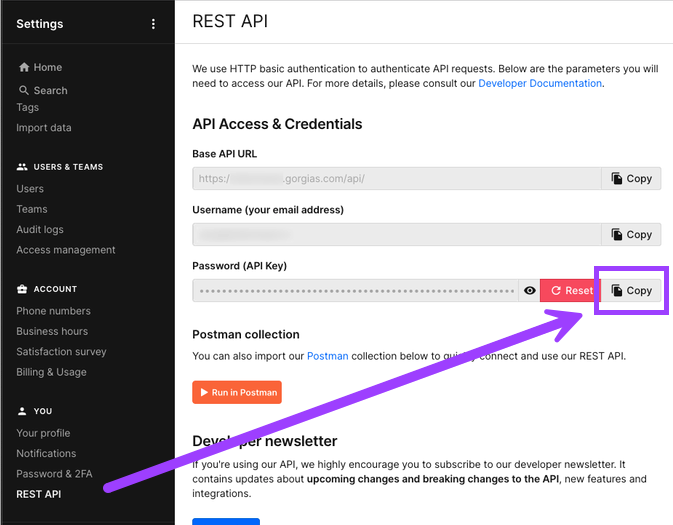
Back in Polar, paste the API key.
Click Connect to Polar Analytics.
Your Gorgias data can take 24–48 hours to appear in Polar. See Data Syncs.
Metrics and dimensions
Explore them in the custom table builder.
Type | Available |
|---|---|
Metrics | Tickets Created, Tickets Opened, Tickets Closed, Agent Messages |
Dimensions | Agent Name, Channel, Tag Name, Integration Name, Integration Type, Ticket ID, Ticket Excerpt, From Agent |
Not every dimension works with every metric. For example, From Agent and Ticket ID break down Agent Messages, while Agent Name and Tag Name break down ticket counts.
FAQs
Where do I find my Gorgias domain?
In your Gorgias URL. For https://yourstore.gorgias.com, the domain is yourstore.
Why isn't my Gorgias data showing yet?
The first sync can take 24–48 hours. If it's been longer, check the Gorgias connector on the Connectors page. See Managing Connectors.