Troubleshooting Google Sheets
Last updated: September 25, 2026
This article covers the most common Google Sheets issues and how to fix them. For column and formatting rules, see Google Sheets template requirements.
Tip: describe the issue to Ask Polar first. It can look at your specific connection and data, and can often resolve the issue straight away.
My data isn't showing up
The first sync can take up to 24 hours. After that, check the following:
The sheet is connected. On the Connectors page, click Configure on Google Sheets and check that the status shows Connected.
Your date range includes the data. Check the date filter on your report.
Your View includes Google Sheets. If you're using a View, add Google Sheets as a data source.
The sheet URL hasn't changed. If you copied or moved the sheet, reconnect it with the new URL.
To import the latest changes straight away, trigger a manual sync (see below).
A metric from my sheet isn't appearing
This is usually caused by a duplicate metric name. Metric column names must be unique across all your connected Google Sheets. If two sheets have a metric column with the same name (for example, "Target"), only one is imported. Dimension columns (such as "Campaign" or "Channel") don't have this restriction.
To fix it, either:
Rename the metric column in one of the sheets to something unique (for example, "Target VDT" instead of "Target"), then trigger a manual sync.
Combine the data into a single sheet and use a dimension column (for example, "Channel") to tell the sources apart.
My numbers look right, but they won't import
This is almost always caused by commas in number formatting. Polar only accepts a period as the decimal separator and no thousands separators. In Google Sheets, select the column and change the number format so it doesn't use commas:
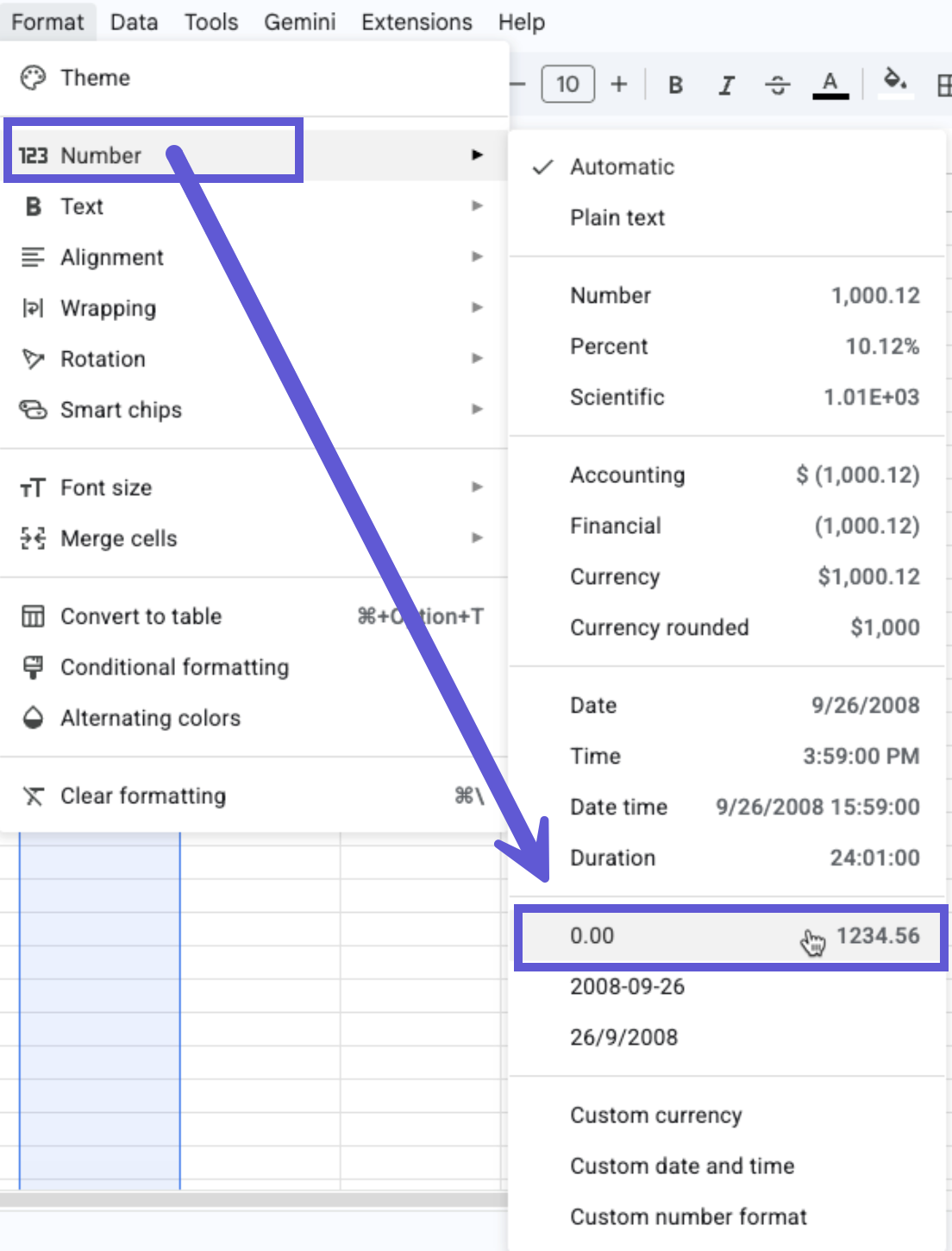
Also check that there are no blank metric cells (use 0.00 instead) and no stray spaces in cells.
My values are converted to the wrong currency
If you're using the Custom Report template, Polar treats all monetary values as USD and converts them to your account currency, even if your sheet has a currency column. If your values are in another currency (for example, GBP or EUR), they'll come out inflated or otherwise incorrect.
To fix it, either:
Convert your monetary values to USD before importing.
Use one of the standard templates (Marketing Spend, Expenses or Cost of Goods), which handle currency conversion automatically based on the currency column.
I get an error when connecting the sheet
Check the URL. Paste the full sheet URL, including
/edit#gid=.Check the named range. The name you paste into Polar must match the one in Data › Named ranges in your sheet, and the range must cover the right columns for your template.
Check the structure. Make sure you haven't renamed sheets or removed required columns, and that you've deleted the template's example rows.
Trigger a manual sync
On the Connectors page, click Configure on Google Sheets.
Click Reload and preview at the top right.
Click Start sync at the bottom.

Still stuck? Reach out through the in-app chat and ask to speak with an agent.