Building Custom Dashboards: Charts & Cards
Last updated: October 13, 2026
This article explains the chart types, card types and building tools available in Polar's custom dashboards.
Charts
Chart types
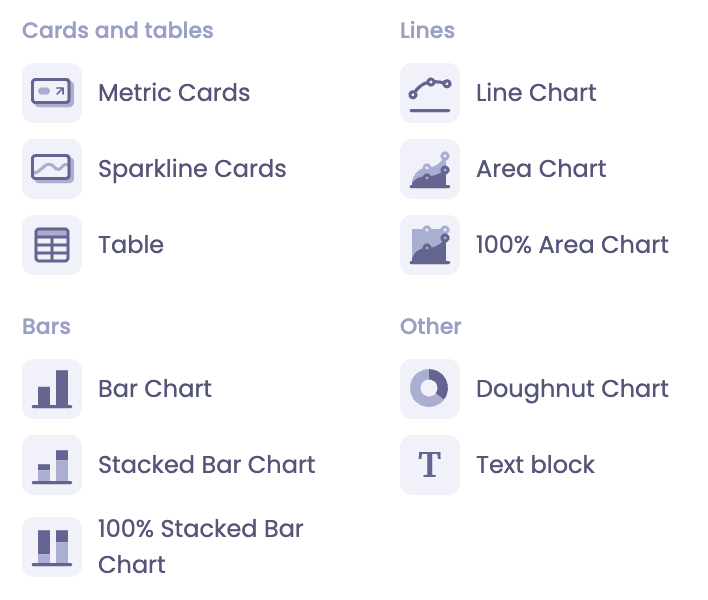
Line and bar charts are separate chart types, so you choose how each chart is displayed. Other options include:
Stacked bar charts and 100% stacked bar charts
Area charts and 100% area charts
Mixed charts (bars and lines)
To show some metrics as bars and others as lines in the same chart, use Customize series and choose how each metric is displayed.
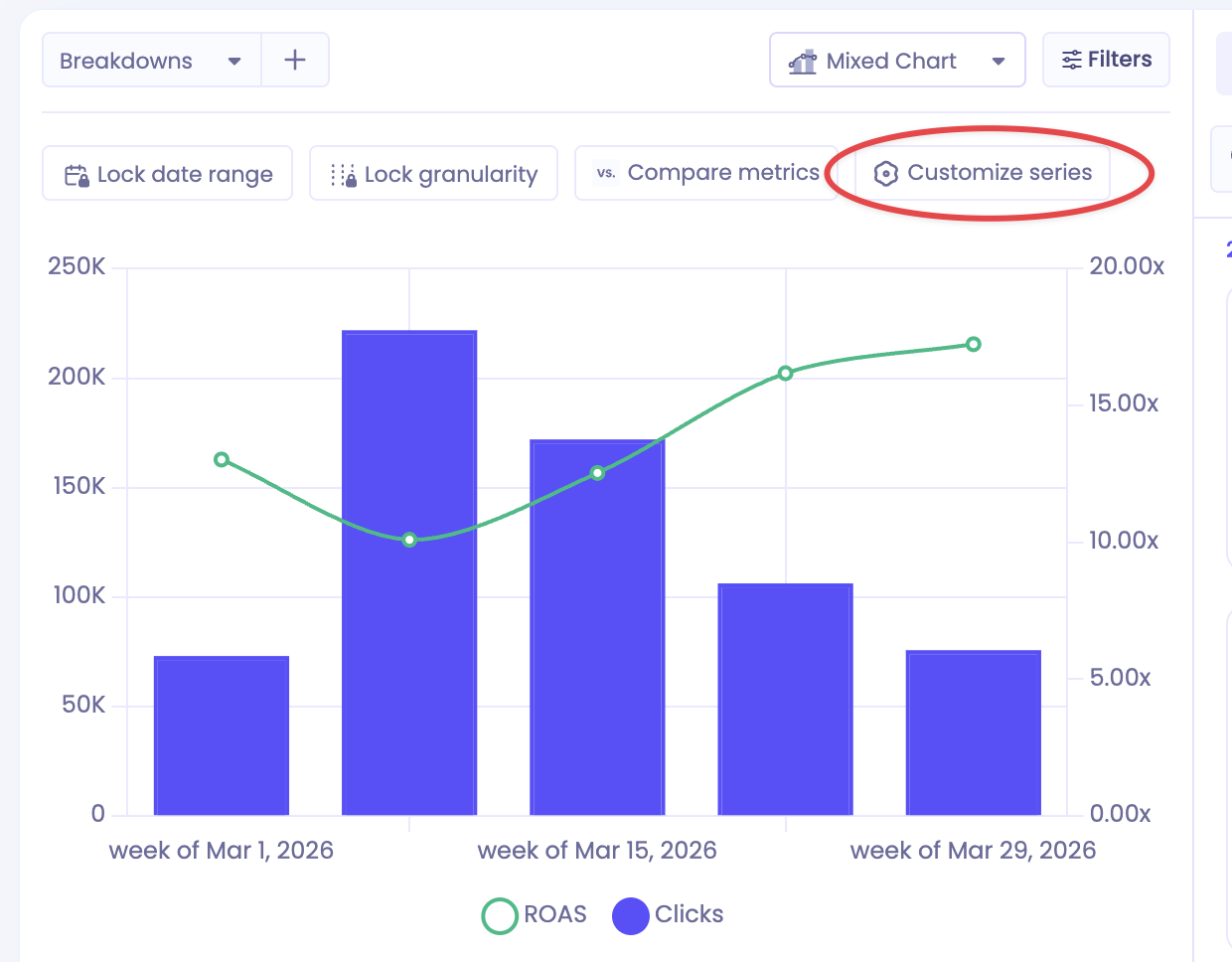
Why are my metrics on separate Y-axes?
Metrics are grouped onto axes by their format (Currency, Number, Percent or Duration). If two metrics use different formats, they'll appear on separate axes, even if they represent the same kind of value. This is common with Google Sheets metrics, which come in as plain numbers.
To show a Google Sheets metric on the same axis as a currency metric like Net Sales, create a custom metric for the sheet column and set its format to Currency in the Formatting tab. Then use that custom metric in your chart.
Comparisons
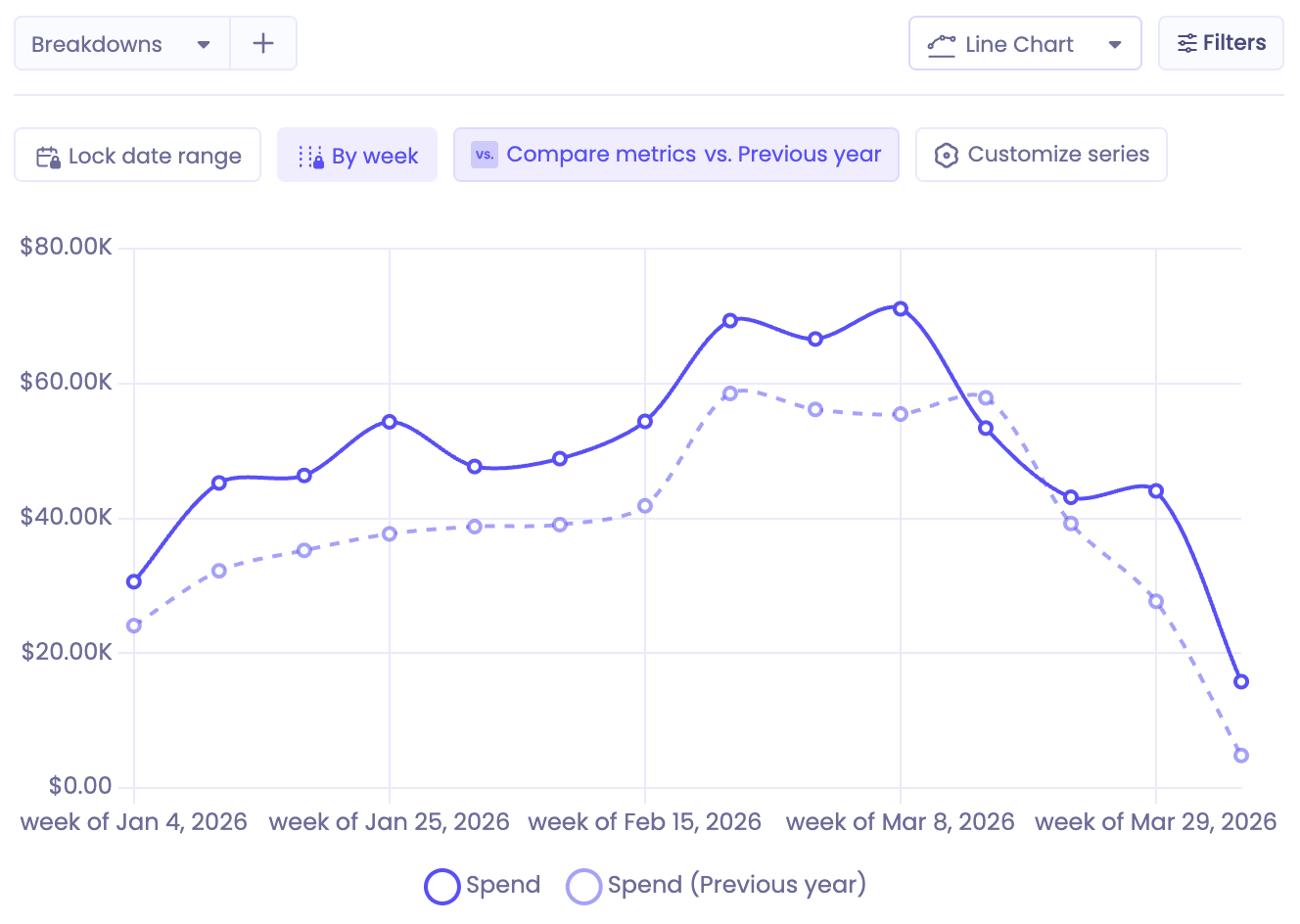
You can add a comparison period directly to a chart, making it easier to see how performance is trending over time.
Cards
Cards show your headline metrics at a glance. There are two types:
Card type | What it shows |
Metric Card | A single value |
Sparkline Card | A single value with a small trend chart |
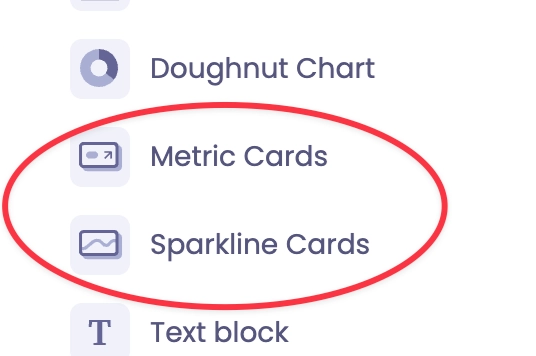
Whether a card shows a chart depends on its type. To add or remove the trend chart, edit the card and switch between Metric Card and Sparkline Card.
Filters and locked date ranges
Both card types support custom filters and locked date ranges, so a card can show a fixed period (for example, month to date) regardless of the dashboard's date filter.
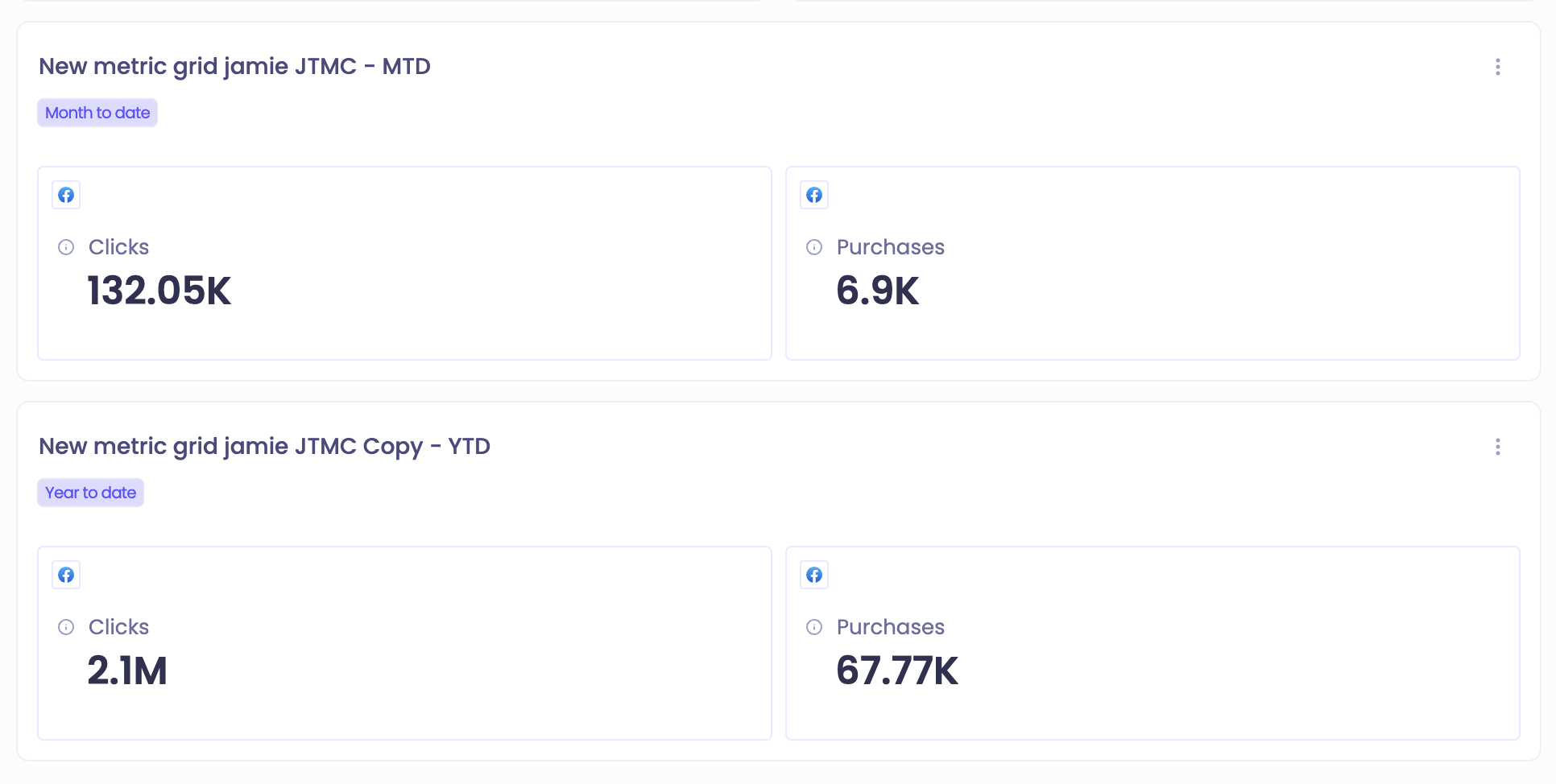
Build cards
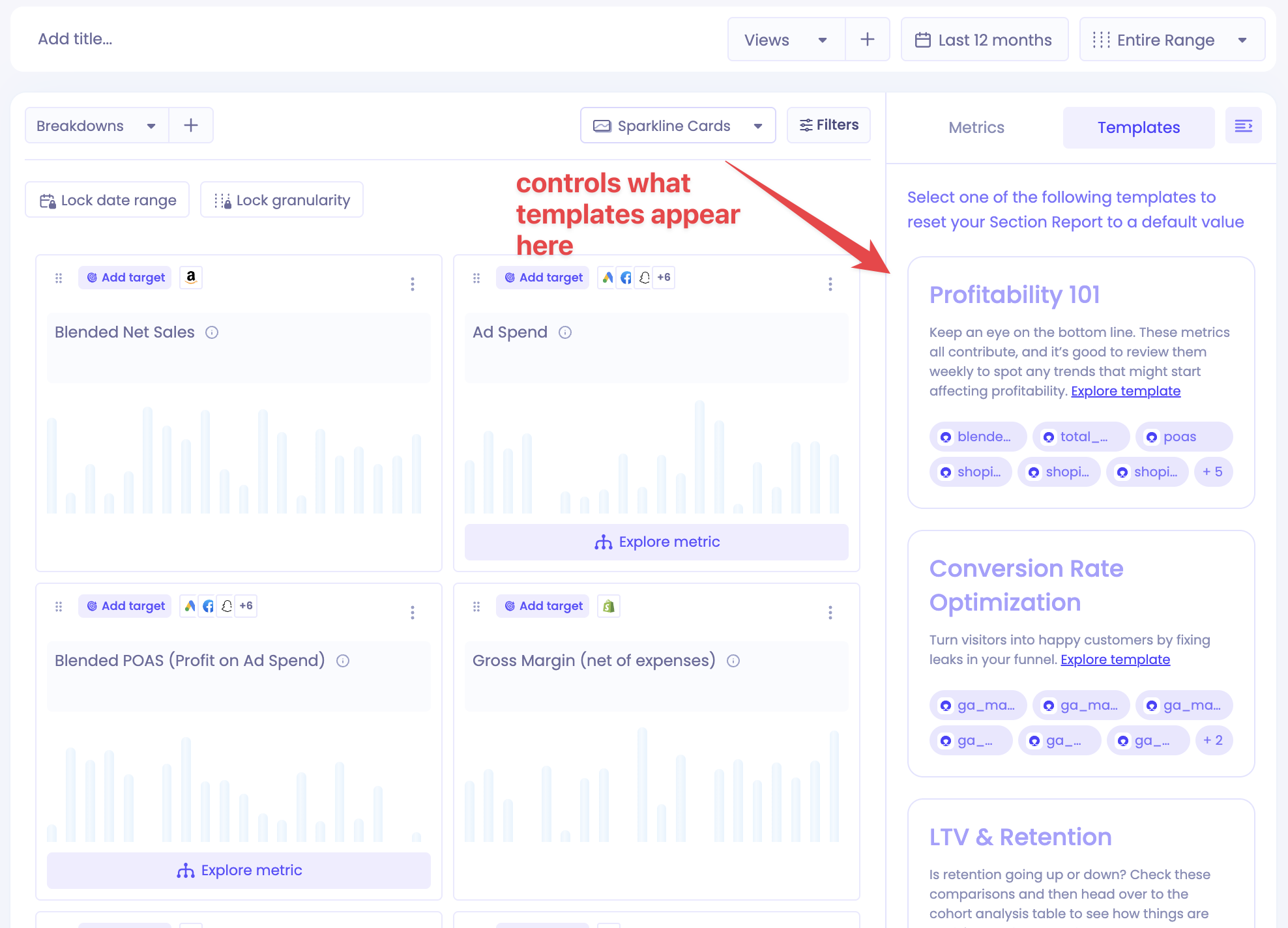
Add a Card Grid to your dashboard to create a section of metrics.
Create each card with the custom table builder, or start from one of the templates in the sidebar.
Gift cards in cards
For new accounts, Exclude gift cards by default is turned on in Data Settings. Individual cards don't add a gift card filter on their own, so to exclude gift cards from a specific card explicitly, add the filter Gift Card = false.
Build dashboards with AI
You can create dashboards by describing what you want to Ask Polar. See Ask Polar for how it works.