Comparing time periods
Last updated: September 25, 2026
Comparisons show how your metrics have changed against an earlier period, such as the previous week or the same period last year. This article covers adding comparisons to a custom table, showing previous values, and comparing against custom dates.
Where comparisons are set
Where | How to set the comparison |
Custom tables | In the table editor, using Compare Metrics (see below). The comparison is saved with the table. |
Cards on a dashboard | With the comparison selector in the dashboard's date picker, at the top right of the dashboard. |
The dashboard's comparison selector doesn't change custom tables, so set their comparisons in the table editor.
Add a comparison to a custom table
Open the table in the editor, or create a new one, and add your metrics.
Click Compare Metrics.
Choose what to compare against:
Previous period adjusts to your table's granularity. For example, if you're viewing Total Sales by week, each week is compared with the week before.
Previous year compares with the same dates one year earlier.
Choose the format: the previous value, the percentage change, or both.
Choose whether to apply the comparison to all metrics or only some.
Click Apply, then save the table.
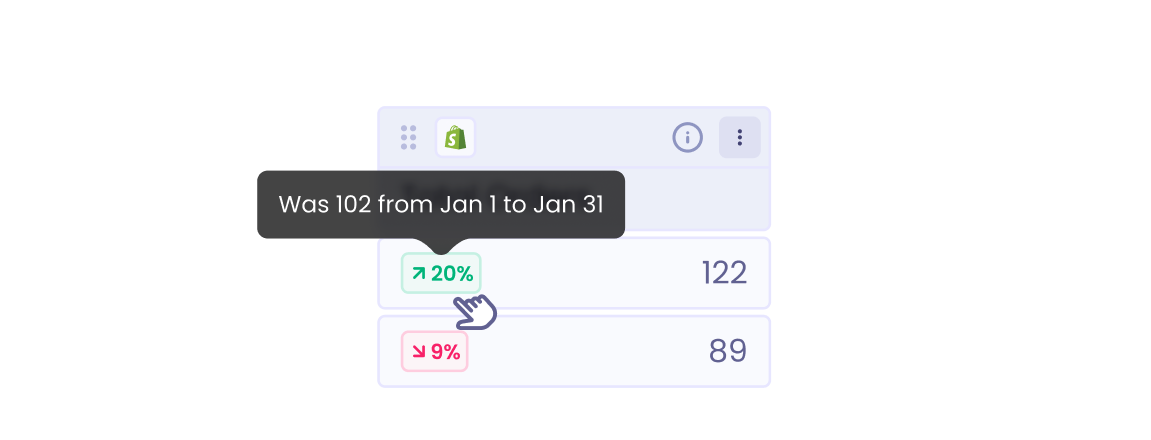
To see exactly which dates each value is compared with, hover over a cell.
Show previous values
By default, a table shows the percentage change in the same cell, and you can hover over it to see the previous value.
To show previous values in their own column, open the column header's menu and choose Show previous value column.
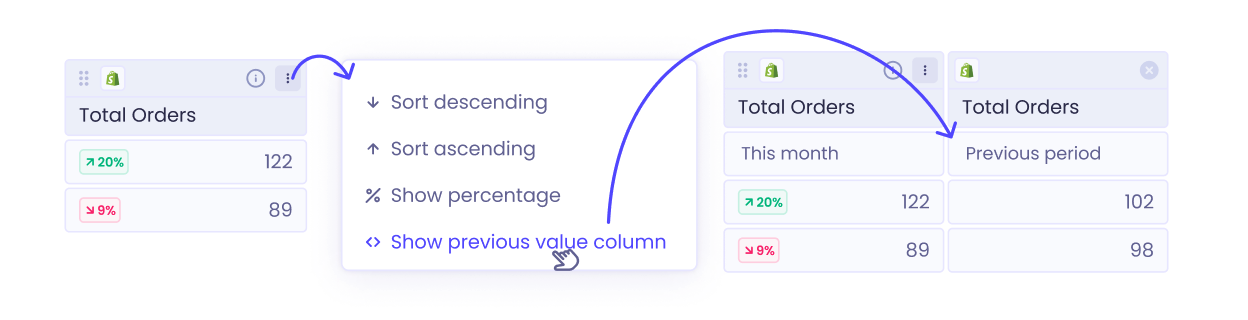
To keep it, turn this on while editing the table and save. Outside the table editor, the setting is temporary and resets when you leave the page.
Compare with a different day last year
Previous year compares with the same calendar dates last year. So September 28 is compared with September 28, even if they fell on different days of the week.
To compare the same day of the week instead (for example, the last Wednesday of September), open the date picker and choose your own dates under Compare to.
For troubleshooting comparison values, see Troubleshooting custom tables.