Labels
Last updated: September 24, 2026
A label is a tag you put on a metric to record how it should be used. Labels appear next to the metric throughout Polar, and Ask Polar reads them when it chooses which metric to use in an answer.
When to use labels
Most workspaces have several metrics that look similar: Revenue, Net Revenue, Revenue excluding gift cards, and one built for a particular report. People who know the workspace know which to use. Other people guess, and so does AI.
A label lets you record the answer once, in a place everyone sees at the moment they pick a metric.
Common uses:
Marking which of several similar metrics is the approved one.
Marking metrics that are kept for old reports and should not be used in new work.
Marking metrics that are still being checked and should not be shared outside the team.
Recording who owns a metric, or what it excludes.
What a label contains
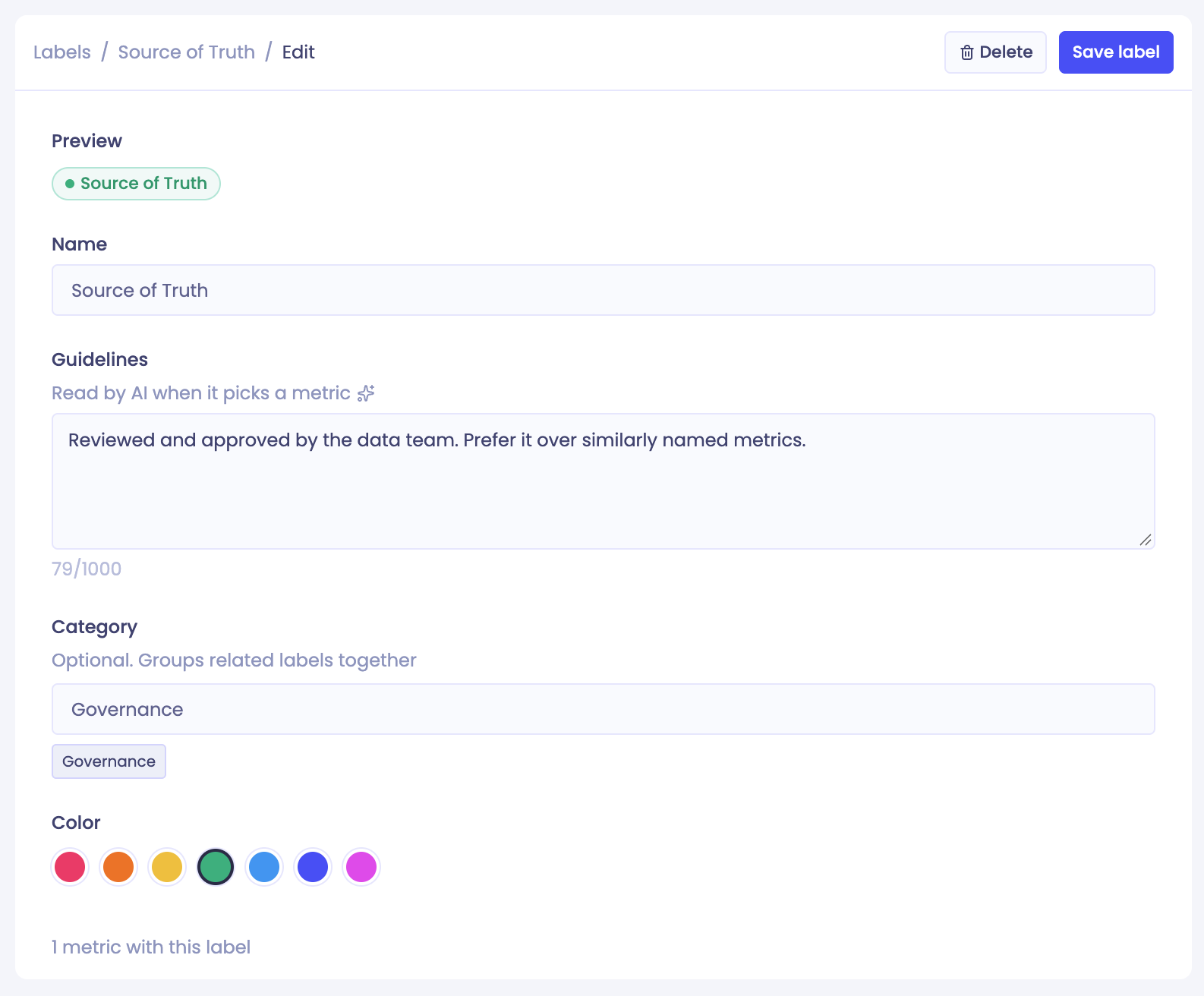
Name
The short text shown on the label itself. Up to 60 characters.
Guidelines
One or two sentences explaining what the label means and when to use a metric that carries it. People see this when they hover the label, and Ask Polar reads it when choosing a metric. This is the most important field.
Category
Optional. Groups related labels together on the Labels page, for example Governance or Ownership.
Colour
One of seven colours: red, orange, yellow, green, blue, indigo or magenta.
Writing guidelines
Write guidelines as instructions to the next person who has to choose a metric. Say what the label means and what to do about it. For example:
Reviewed and approved by the data team. Prefer it over similarly named metrics.
Kept for old reports only. Do not use it in new work, a replacement exists.
Avoid text that does not tell anyone what to do. "Important metric" gives a colleague nothing to act on, and gives AI nothing either.
Built-in labels
Three labels are available to create in one click, with their guidelines already written. You can edit them afterwards.
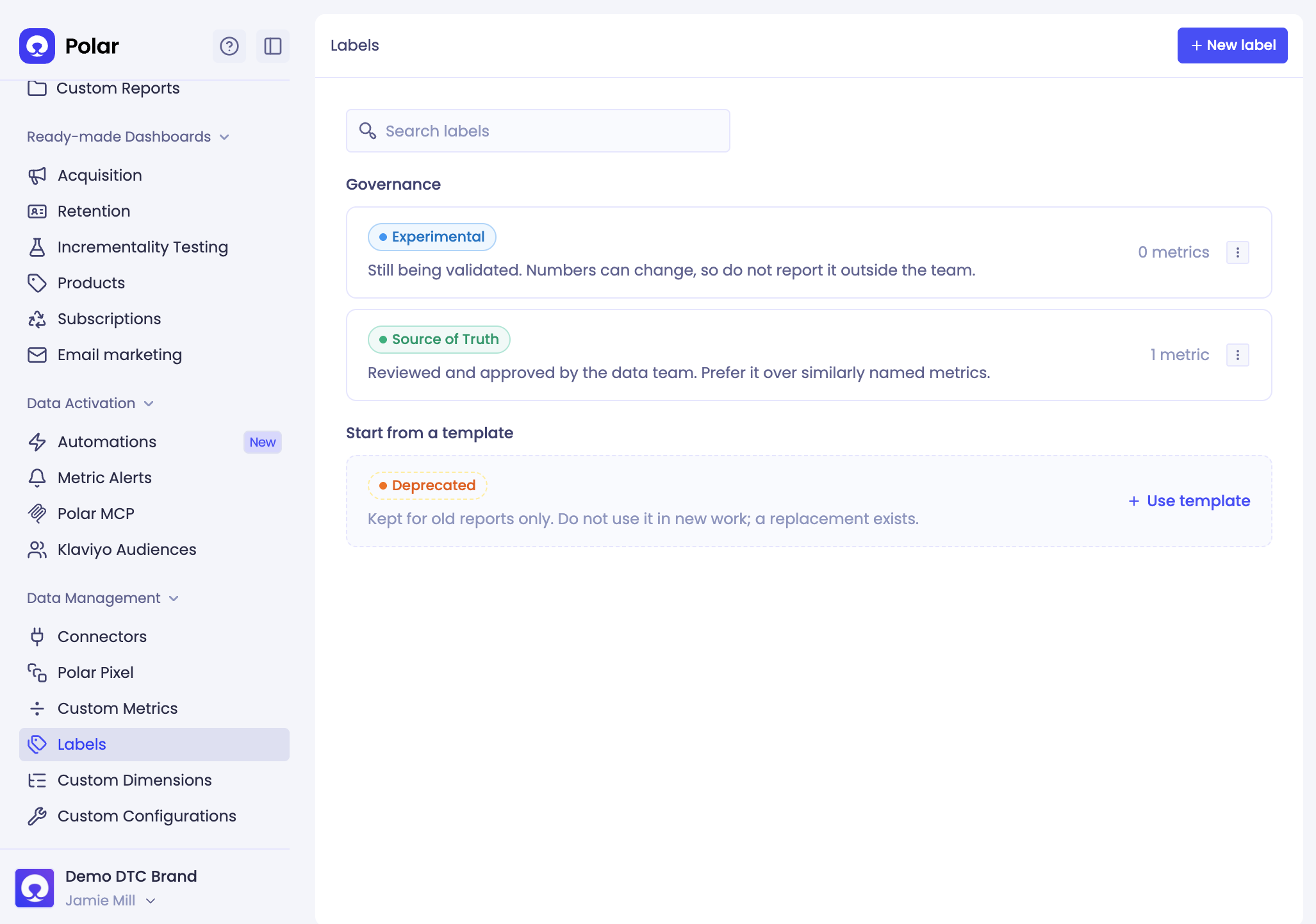
Source of Truth - Reviewed and approved by the data team. Prefer it over similarly named metrics.
Deprecated - Kept for old reports only. Do not use it in new work, a replacement exists.
Experimental - Still being validated. Numbers can change, so do not report it outside the team.
You can also create your own labels with any name, guidelines and colour.
Where labels appear
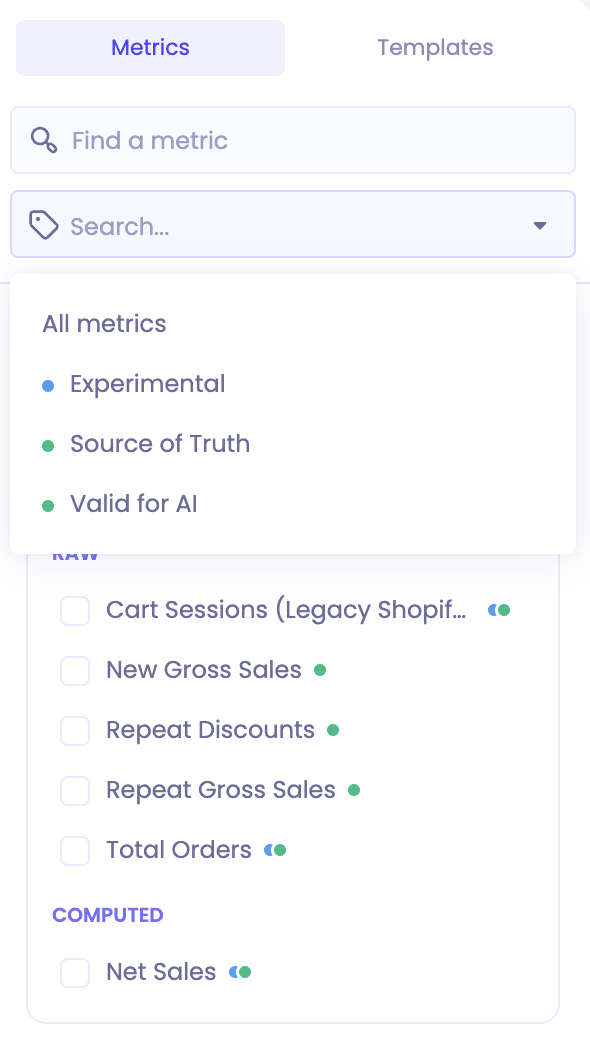
When building reports
Filter metrics by label at the top of the list. Each metric has a dot showing the labels applied on hover.
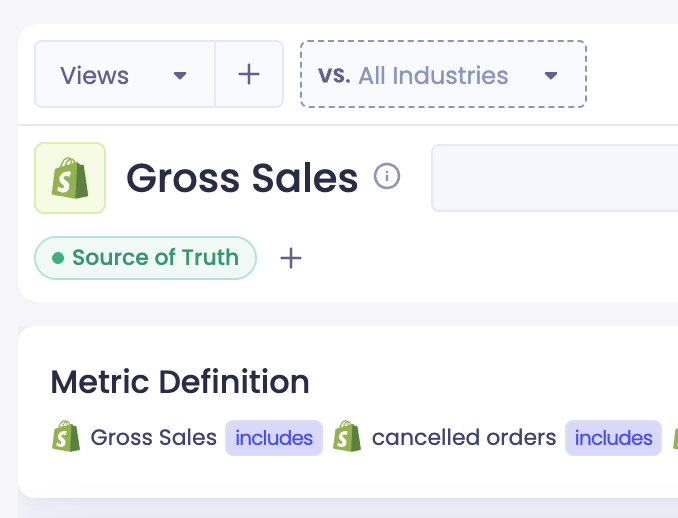
On the metric page
Labels are shown under the metric name.
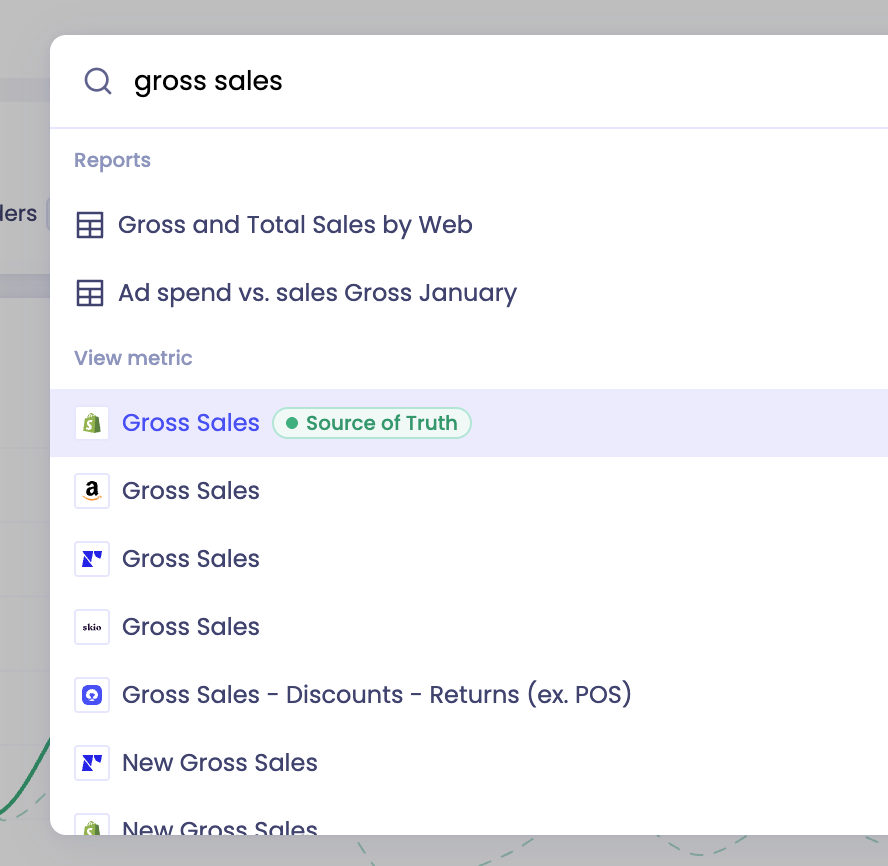
In search
Search results show each metric's labels. You can also search for a label by name to see everything that carries it.
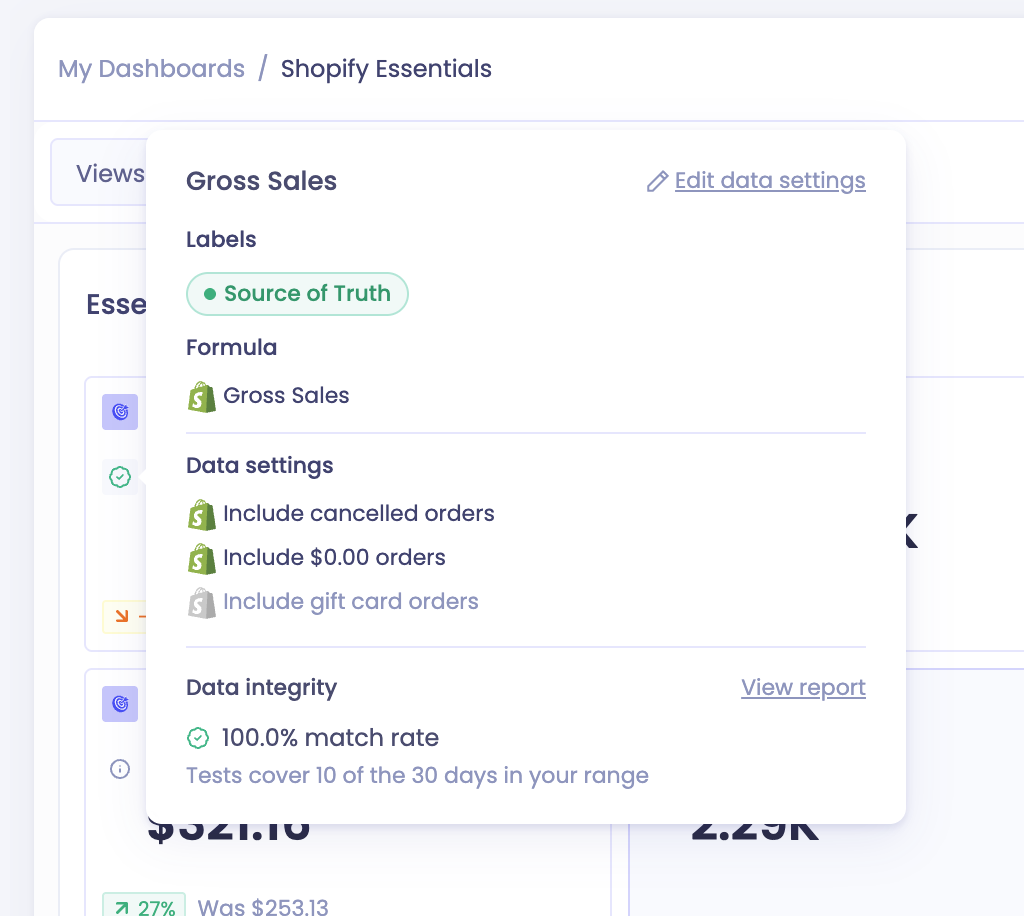
In metric tooltips
Hover the information icon next to a metric anywhere in Polar, including on dashboard cards, and its labels are shown with the description.
In Ask Polar and connected AI
Ask Polar, and any assistant connected through Polar MCP, receives your metrics with their labels and guidelines attached, along with the full list of labels in your workspace. When more than one metric could answer a question, it is instructed to prefer the one whose labels match the question, and to name the label when it cites the metric.
Creating and editing labels
Go to Data Management › Labels in the left navigation. The page lists every label in your workspace, grouped by category, with a search box.
From here you can create a label, create one of the three built-in labels, edit a label's name, guidelines, category or colour, or delete a label. Deleting a label removes it from every metric that carries it.
Opening a label shows its details and the metrics that carry it.
Adding a label to a metric
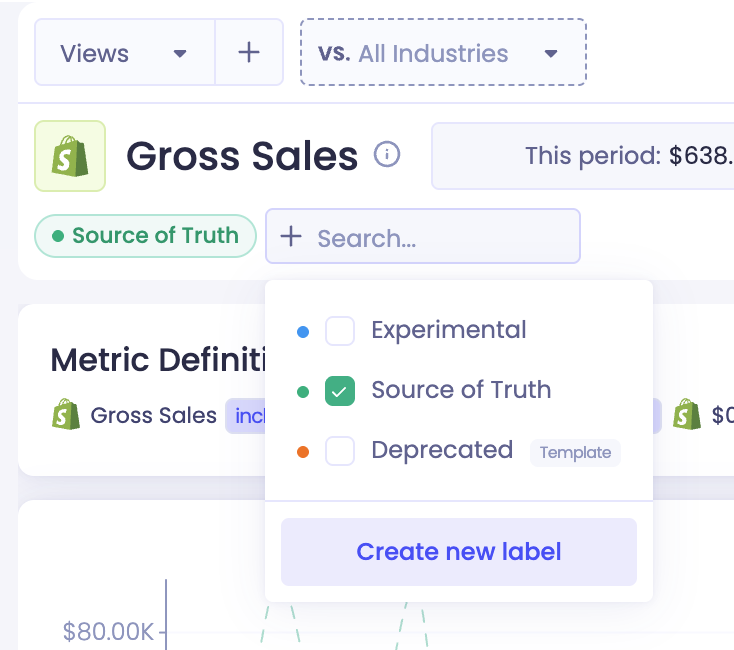
From a metric page:
Select the + next to the labels under the metric name.
Choose an existing label, or create a new one without leaving the page.
From the block builder:
Click "Add labels" next to a metric
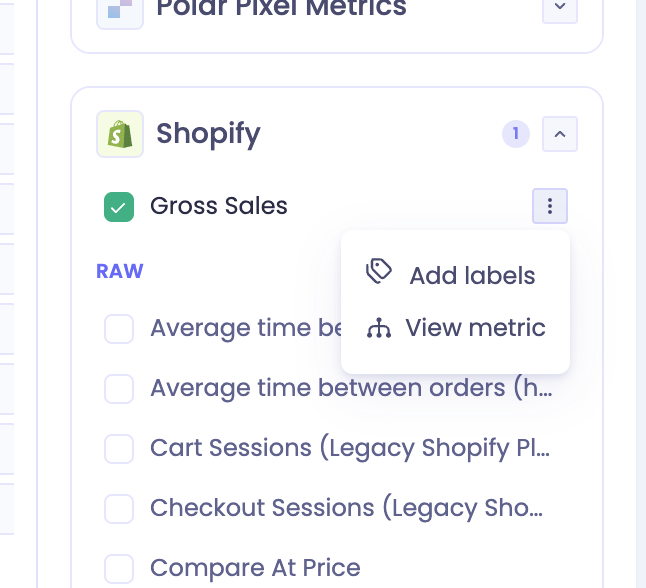
Select your labels and click Done.
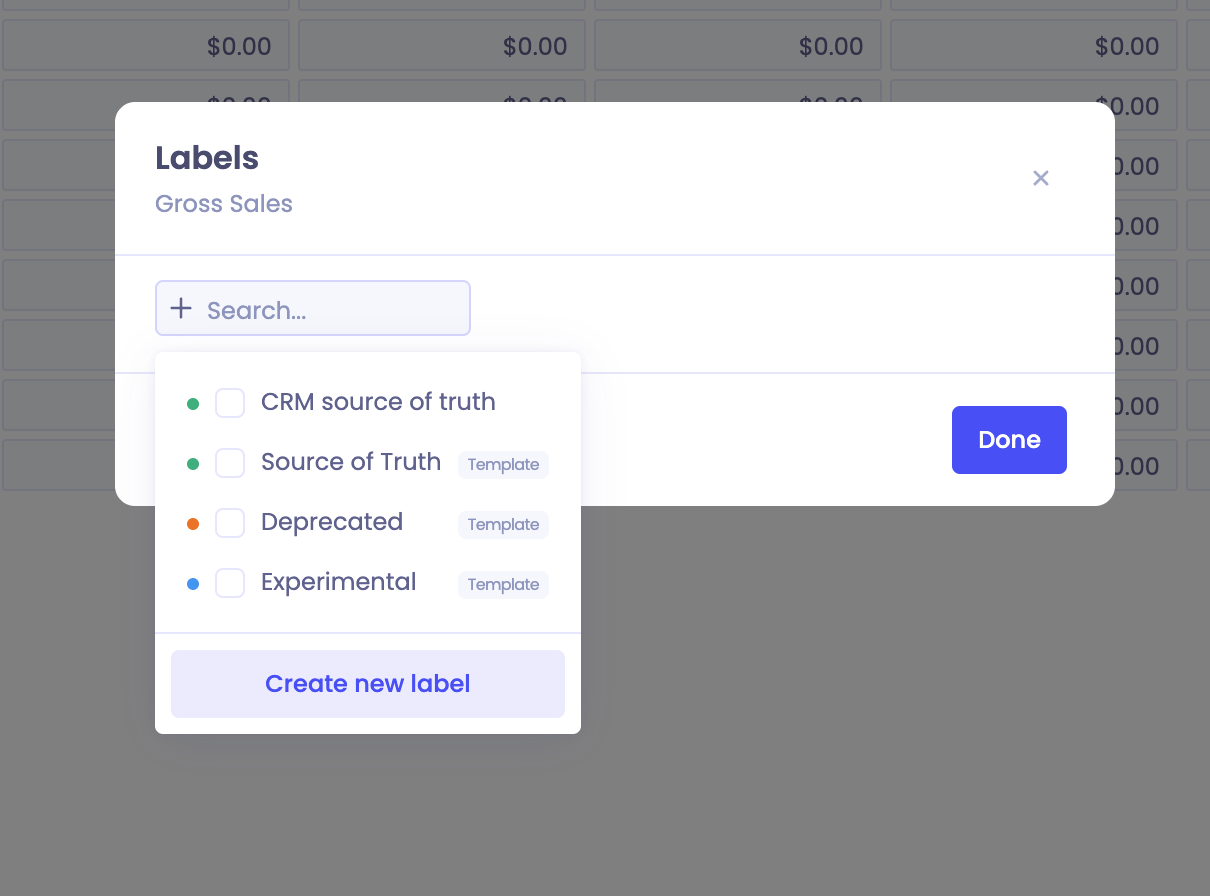
Changes save straight away. To remove a label, open the same menu and deselect it.
Asking AI to manage labels
Ask Polar, and assistants connected through Polar MCP, can create labels, edit their names and guidelines, delete them, and add or remove labels on your metrics. Ask in plain language, for example:
Label our three revenue metrics. Net Revenue is the one finance approved, the other two are kept for old reports.
AI will add a label when you ask. Before removing a label it has to describe what it is removing and get your confirmation, because removing a label changes how everyone judges that metric.
Permissions
Anyone who can view metrics can see labels and read their guidelines.
Creating, editing and deleting labels, and changing which labels a metric carries, requires permission to edit metrics.