Google Ads
Last updated: September 24, 2026
This article covers connecting Google Ads to Polar, fixing connection errors, understanding differences with Google Ads reporting, and the metrics and dimensions available.
Connect Google Ads
Add Google Ads from the Connectors page in Polar. Before you connect, make sure that:
You sign in with an email that has user access to the Google Ads account.
You check every permission box during the Google sign-in step, so Polar can access your data.
You connect only one My Client Center (MCC) account per Google Ads connector.
To attribute Google Ads traffic with the Polar Pixel, also set up your tracking parameters using the Google Ads Tracking Parameters Guide.
Fix connection errors
Errors when connecting Google Ads are almost always a permissions issue. First, check the three points in the section above. If the error continues, reset the connection:
In your Google account, open the list of third-party apps with access to your account and select Remove access for Polar Analytics.
Reconnect Google Ads from the Connectors page in Polar, making sure to check every permission box.
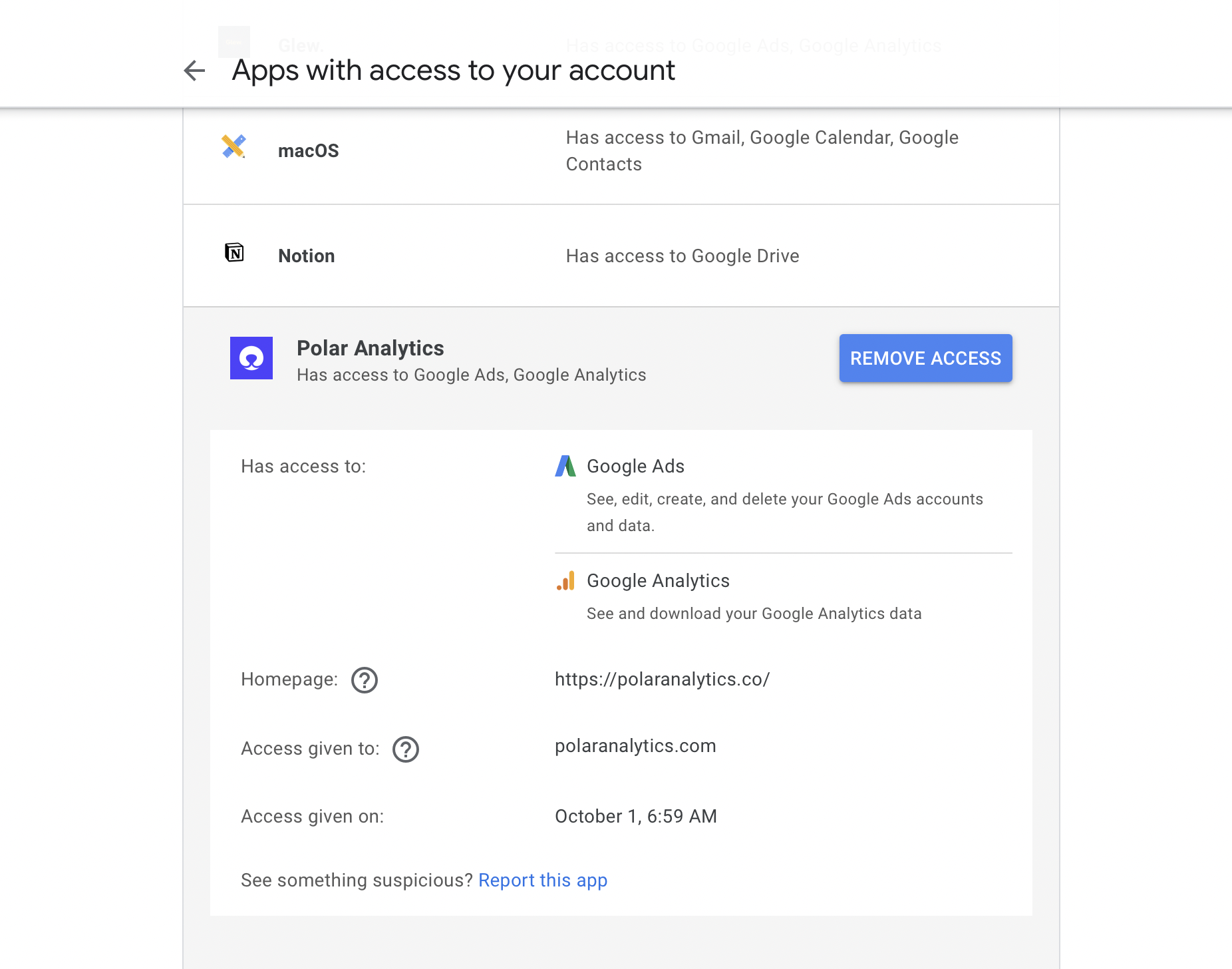
If you still can't connect, reach out through the in-app chat.
Why numbers may differ from Google Ads
Polar shows fewer conversions than Google Ads
If you're comparing the same date range and attribution settings, this is usually caused by conversion delay. Google Ads reports conversions on the date of the ad impression, not the date the conversion happened. Because conversions happen after the impression, Google keeps updating past days as new conversions come in.
Polar doesn't show real-time data, so when Google updates a past day, the new numbers appear in Polar at the next data refresh. Until then, Polar may show slightly fewer conversions. To see how long your conversions typically take, check your conversion lag data in Google Ads.
"Conversions" vs. "Conversions (All)"
Metrics ending in (All), such as Conversions (All) or ROAS (All), include every conversion action you track in Google Ads. The standard metrics only include the actions you've chosen to include in your main "Conversions" column. Use the standard metrics for your primary goals and the (All) metrics for a broader view. Learn more from Google.
Google Ads data vs. Polar Pixel data
Google Ads metrics use the attribution settings configured in your Google Ads account, so they can differ from Polar Pixel conversions. See Troubleshooting Data Differences Between Polar and Your Ad Platform.
Available metrics
Raw metrics come directly from Google Ads. Computed metrics are calculated from raw metrics using Google Ads definitions. Explore them all in the custom table builder.
Stage | Raw metrics | Computed metrics |
Delivery & spend | Impressions, Cost | CPM |
Clicks | Clicks | CPC, CTR |
Conversions | Conversions, Conversion Value | Cost per Conversion, Average Conversion Value, ROAS, Order Rate, Revenue per Click, Revenue per Impression |
All conversions | Conversions (All), Conversion Value (All) | Cost per Conversion (All), Average Conversion Value (All), ROAS (All), Order Rate (All Conversions), Revenue per Click (All), Revenue per Impression (All) |
Available dimensions
Group | Dimensions |
Account | Account ID, Account name, Account currency, Timezone |
Campaign | Campaign, Campaign ID, Campaign status, Advertising channel type, Advertising channel sub type, Tracking URL template |
General | Channel, Date, Device |
Need more? You can import additional Google Ads metrics and dimensions beyond the standard dataset. See Understanding Custom Datasets for Google Ads.