Facebook Ads
Last updated: October 30, 2026
This article covers connecting Facebook Ads to Polar, fixing permission errors, managing ad spend from Polar, understanding differences with Ads Manager, and the metrics and dimensions available.
Polar imports all the ads in your connected ad accounts, including ads that run on Facebook, Instagram and Messenger.
Connect Facebook Ads
Before you start: make sure you have full admin access to the Facebook ad account(s) you want to connect. Without it, the connection won't complete.
Step 1: Open the Connectors page in Polar
Go to the Connectors page in Polar.
In the Marketing section, find Facebook Ads, or use the search bar in the top-right corner.
Click Connect to Polar Analytics.
Step 2: Authorize Polar in Facebook Business Manager
You'll be redirected to Facebook Business Manager. Log in to your Facebook account.
Select the business or businesses you want to connect, then review and approve Polar Analytics' access request.
On the final screen, click Got It.
Step 3: Choose your ad accounts
Back in Polar, select the ad accounts you want to connect.
Click Save Configuration.
Best practice: connect 1 to 3 ad accounts per connection. You can add more later with + Add Facebook Ads Account.
To attribute Facebook traffic with the Polar Pixel, also set up your tracking parameters using the Facebook Ads Tracking Parameters Guide.
Fix "Missing Permissions" errors
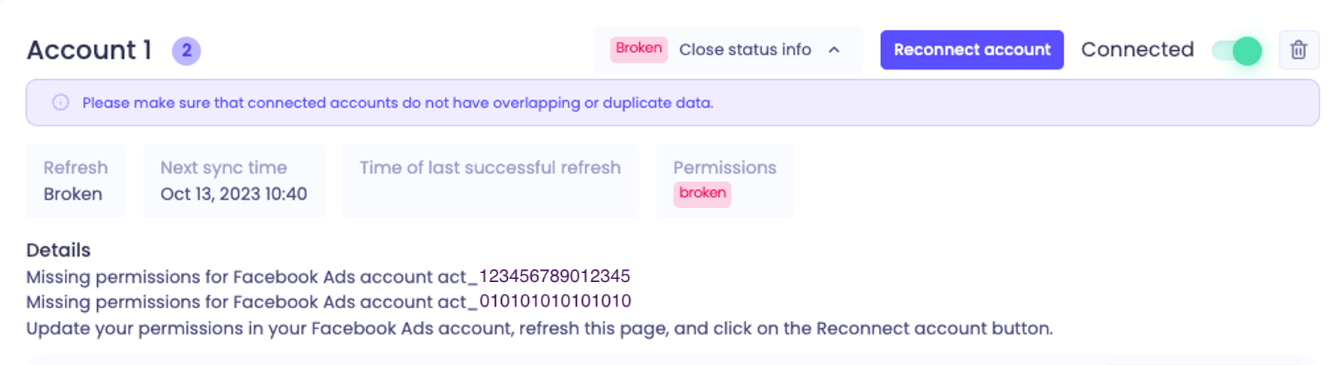
This error means either you don't have enough access to one of the listed ad accounts, or Polar hasn't been granted the required permissions for the Business Manager that owns them.
Step 1: Check that you can access the ad account
In Meta Business Manager settings, go to Ad accounts.
Search for the ad account number shown in the error.
If it doesn't appear, you don't have access. Request access and ask the ad account owner for the admin role.
If it appears, continue to Step 2.
Step 2: Confirm your permissions on the ad account
Look for your name in the list of people assigned to the ad account. If you're not listed, ask someone who is to add you with full permissions using Add People.
If you're listed, click your name and make sure Manage Ad Accounts is toggled on.
If the toggle is missing, you don't have the required permissions. Ask the ad account owner or an admin to give you the Admin role.
Step 3: Check Polar's app permissions in Facebook
On your personal Facebook profile, go to Business Integrations.
Find Polar Analytics and click View and Edit.
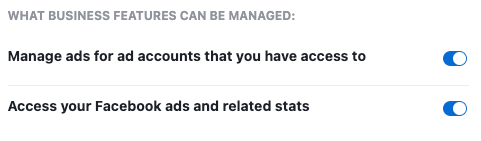
Make sure all permissions are enabled, especially Manage ad accounts and Read ads.
Step 4: Reset the connection
If everything looks correct but the error persists:
Remove the Polar Analytics app from your Facebook Business Integrations.
In Polar, go to the Connectors page and delete the broken Facebook connector.
Reconnect by following the steps at the top of this article.
Manage ad spend from Polar (optional)
Managing Meta ad spend directly from Polar is an opt-in feature that requires business management permissions. It isn't needed to connect Facebook Ads or to see your data.
You need admin access to both the ad account and the Business Manager that owns it.
Agencies: partner permissions aren't enough. To manage ad spend, the client must connect their own ad account.
Enable the permission: follow Steps 1–3 in the permissions section above, and in Step 3 make sure the Manage your business toggle is also on for Polar Analytics.
Why numbers may differ from Ads Manager
Campaign-level conversions are missing in Ads Manager
Facebook doesn't show conversions at the campaign level in Ads Manager when the ads in a campaign use different attribution settings. The conversions still appear at the ad set and ad level, and Polar shows them at every level. If a campaign's conversions in Polar don't match Ads Manager, compare at the ad set or ad level instead. Learn more from Meta.
Purchase count is lower, but conversion value matches
This is expected. Polar pulls Facebook data at a granular level (by ad, placement, device and so on), and Facebook rounds purchase counts on each row before returning them through its API. For example, a row with 0.3 purchases comes back as 0. Across many rows, this makes the total purchase count look lower. Conversion value isn't rounded, so it matches Facebook to the cent. The effect is often more noticeable with Incremental attribution.
Polar isn't losing data. It stores exactly what Facebook's API returns, and it already stores purchases as decimals, so if Facebook starts returning unrounded counts, your reports will update automatically. In this situation, conversion value is the more reliable metric.
Facebook data vs. Polar Pixel data
Facebook Ads metrics use the attribution settings configured in your Facebook account, so they can differ from Polar Pixel conversions. See Troubleshooting Data Differences Between Polar and Your Ad Platform.
Available metrics
Raw metrics come directly from Facebook. Computed metrics are calculated from raw metrics using Facebook's definitions. Explore them all in the custom table builder.
Stage | Raw metrics | Computed metrics |
Delivery & spend | Impressions, Spend, Creative Spend | CPM |
Clicks | Clicks, Link Clicks, Outbound Clicks | CPC (All), CPC (Link), CPC (Outbound), CTR (All), CTR (Link), CTR (Outbound) |
Add to cart | Adds to Cart, Adds to Cart Conversion Value | Cost per Add to Cart |
Checkout | Checkouts Initiated, Checkouts Initiated Conversion Value | Cost per Checkout Initiated |
Purchases | Purchases, Purchases (for Click Attribution window), Purchases (for View Attribution window), Purchases Conversion Value, Website Purchases, Website Purchases Conversion Value, In-App Purchases, In-App Purchases Conversion Value | Cost per Purchase, Average Purchase Conversion Value, ROAS, Order Rate (Link Clicks), Revenue per Click, Revenue per Impression |
Leads | Leads, Leads Conversion Value | Cost per Lead |
Available dimensions
Group | Dimensions |
Account | Account ID, Account name, Account currency, Timezone |
Campaign structure | Campaign, Campaign ID, Ad set name, Ad set ID, Ad name, Ad ID, Objective, Buying type |
Placement & device | Publisher platform, Platform position, Device, Device platform, Impression device |
Geography | Target country, Target region |
General | Channel, Date |