Shopify Sales Channels
Last updated: September 25, 2026
This article explains the two types of sales channel dimensions in Polar, which one matches Shopify's reports, and how to rename numeric Channel IDs so your reports are easier to read.
Order-level vs. transaction-level sales channels
In Shopify, an order is the original sale, but a transaction, such as a refund or exchange, can happen later and in a different channel. Polar offers two sets of dimensions to handle this:
Dimension | How it attributes activity | Matches Shopify's reports? |
| Attributes everything, including later returns, to the channel where the order was originally placed. | No |
| Attributes each transaction to the channel where it actually happened. | Yes |
Example: bought online, returned in store
A customer buys a $100 jacket on your website, then returns it at your physical store (POS) two days later.
With Order Sales Channel, both the $100 sale and the −$100 return are attributed to Online Store. This shows the true net result of orders that started online.
With Sales Channel, the $100 sale is attributed to Online Store and the −$100 return to Point of Sale. This matches Shopify's logic and reflects the activity and cash flow at each location.
Which one should I use?
To reconcile with Shopify, for example its Sales by Channel report at month end, use Sales Channel.
To see which channels originally drove your sales, use Order Sales Channel.
Rename numeric Channel IDs
Shopify's API provides numeric Channel IDs, not channel names. So for some third-party sales channels, you'll see a number (for example, 1615469) instead of a name like "Online Store." You can map these IDs to readable names with a custom dimension.
Step 1: Find your Channel IDs
The easiest way is through Shopify's reports:
Open the Total Sales Over Time report in Shopify.
Add the Sales Channel and Sales Channel ID dimensions.
The report shows which ID corresponds to each channel.
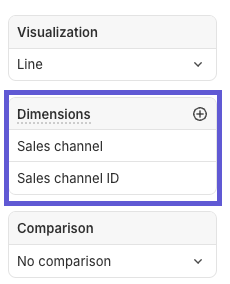
You can also find a Channel ID:
In your Shopify admin: click the channel, and the ID is at the end of the page URL.
From the Shopify Home page: select the sales channel and click View report. The report opens filtered on that channel's ID.
Through the Shopify API: see this Shopify community thread.
Step 2: Create a custom dimension
Open the Custom Dimension builder in Polar.
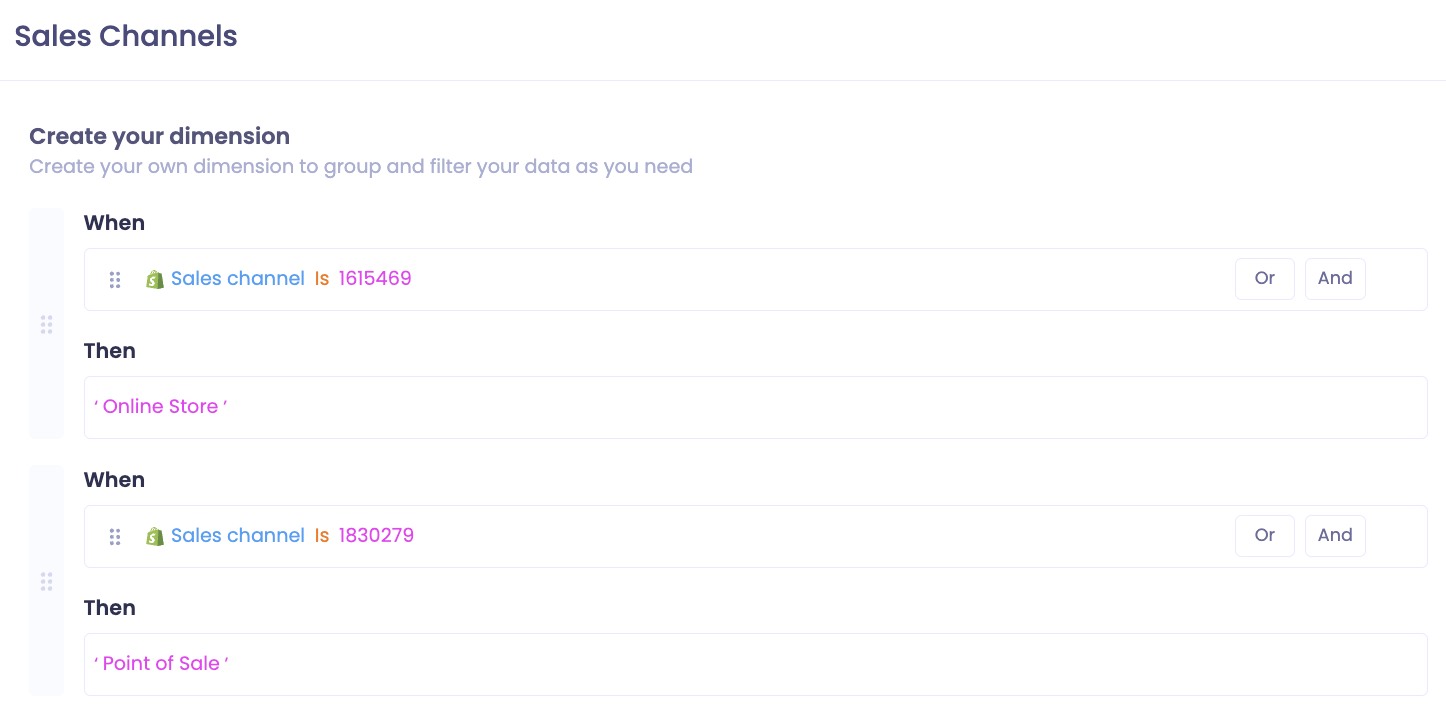
In the When statement, select the Sales Channel dimension, choose is, and enter the Channel ID (for example,
1615469).In the Then statement, type the name you want to display (for example, "Online Store").
Add a When–Then block for each additional channel.
Add an Else statement that returns the original Sales Channel dimension, so all other channels keep their names.
Save the custom dimension.
Your setup might look like this:
Step 3: Use it in your reports
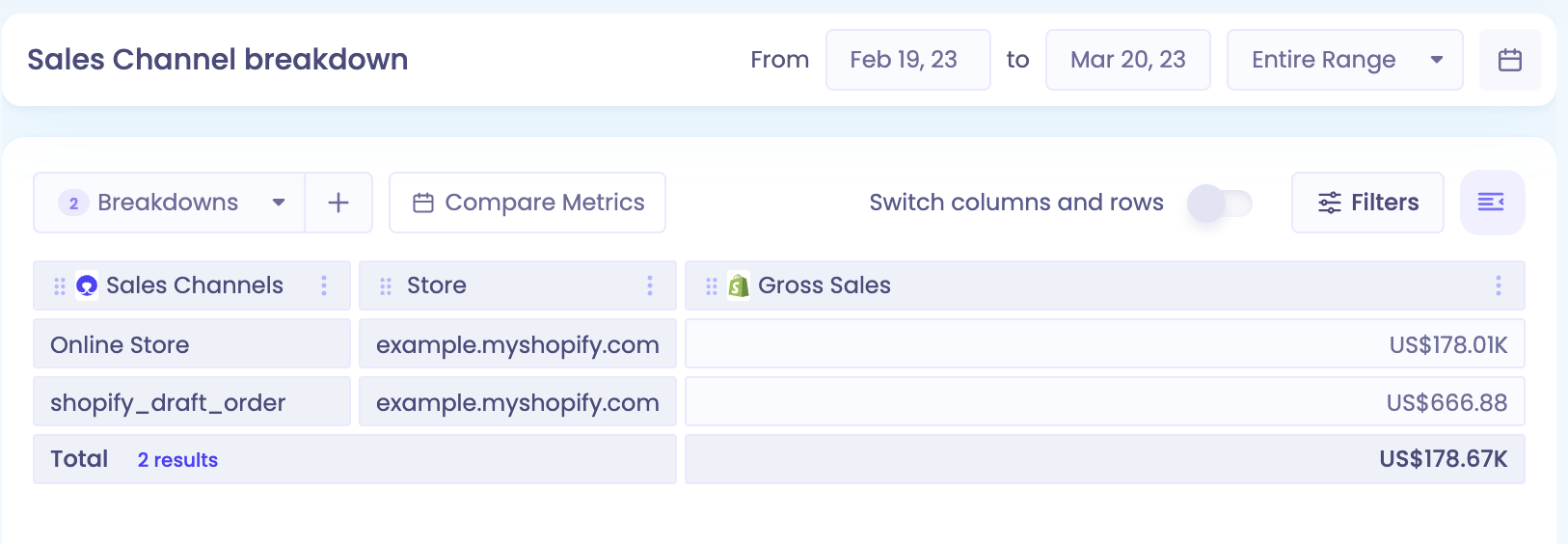
Add your new custom dimension as a breakdown in any report, and you'll see channel names instead of numeric IDs.
Need help setting this up? Reach out through the in-app chat.