Workspaces
Last updated: October 30, 2026
Workspaces let you manage several brands or stores from one login. This article explains how Workspaces work, how agencies can set them up for clients, and how to create, switch between and share Workspaces.
How Workspaces work
Each Workspace is a separate account. It has its own data, users and plan. It isn't a sub-account of another Workspace.
One login for all of them. You use the same login, including Google sign-in, for every Workspace you belong to.
One Workspace per tab. Each browser tab can show a different Workspace. Switching in one tab doesn't change the others.
Copy your setup. You can copy custom tables, metrics and dashboards from one Workspace to another.
Choose a setup for multiple brands
Agencies and multi-brand companies usually pick one of two setups.
Setup | How it works | Best when |
|---|---|---|
One Workspace for all brands | Connect every brand to the same Workspace, then create a View for each brand to filter your dashboards, custom tables and Acquisition reports. | Your clients don't need to log in to Polar. Everyone with access to the Workspace sees every brand's data. |
One Workspace per brand | Create a Workspace for each brand and invite each client to their own Workspace only. | Clients need their own access, or you want separate Alerts for each brand. Separate Workspaces also load faster than one large one. |
In both setups, you can send each client a scheduled report with only their data. See Understanding Automations.
Create a Workspace
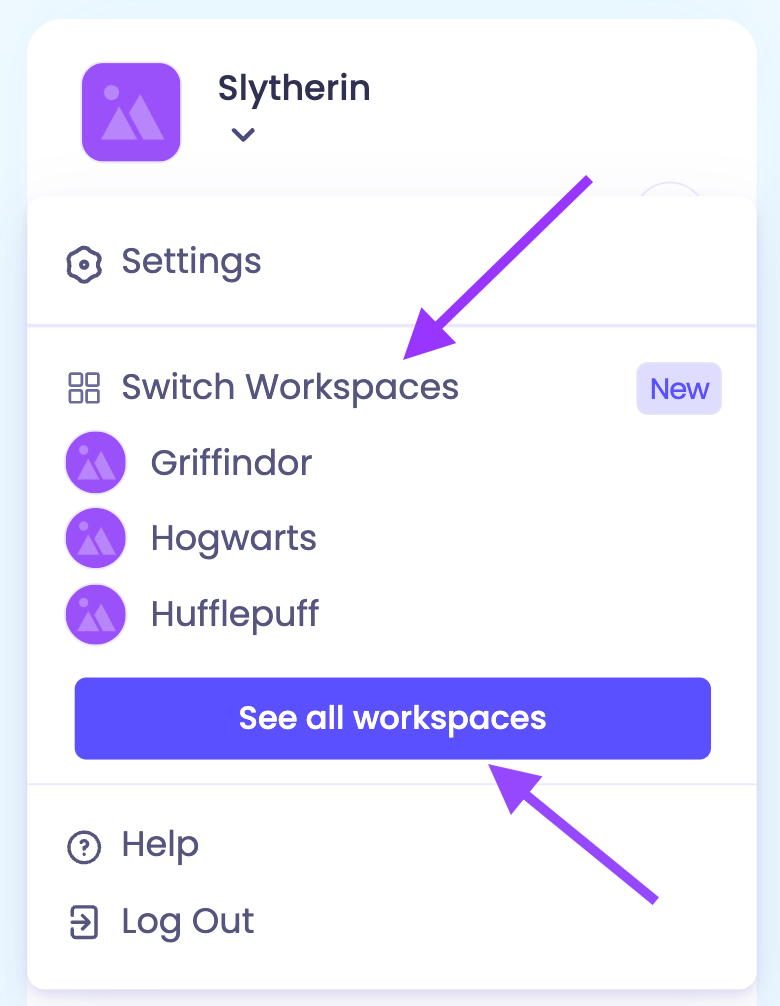
Click your avatar in the top-right corner, then click Switch Workspaces or See All Workspaces.
Click Create Workspace.
Name the Workspace.
To activate the Workspace, contact support through the in-app chat.
Switch between Workspaces
Click your avatar in the top-right corner.
Under Switch Workspaces, click the Workspace you want, or open the full list to see all of them.
Switching only changes the Workspace in the tab you're in. To open a Workspace in a new tab instead, Cmd-click (Mac) or Ctrl-click (Windows) it in the switcher.
Workspace links
Every page in Polar includes the Workspace in its URL, for example:
app.polaranalytics.com/your-workspace/dashboards/...
Link type | What happens |
|---|---|
Shared links | A link to a dashboard or report opens in the right Workspace for anyone who's a member of that Workspace. |
Workspace ID links | Links that use the Workspace ID ( |
Older links | Links created before Workspaces were added to URLs still work. They open in the Workspace you most recently selected in the switcher, joined or created. |
Admins can change the name used in the Workspace's URL in Settings → Workspace.
Invite users and clients
Invite users from each Workspace's settings. You can give the same person a different role in each Workspace, for example Visitor in one and Admin in another. See Managing Users and User Roles & Permissions.
Pricing
Each Workspace has its own plan. Agencies that manage several Workspaces can reach out to our agency team at partners@polaranalytics.co.
FAQs
Can my clients see each other's data?
Only if they're members of the same Workspace. If clients need their own access, give each brand its own Workspace.
Do I need a separate email address for each Workspace?
No. One login works across all your Workspaces. Invite your main email to each one.
Can I open two Workspaces at the same time?
Yes. Open each one in its own browser tab. Switching in one tab doesn't affect the others.