Microsoft Teams
Last updated: October 27, 2026
Connect your Microsoft Teams organization to Polar so your team can ask about your store's performance without leaving Teams.
What you get
Once connected, you can message the Polar bot in Teams and get answers from your Polar workspace: sales, orders, ROAS, channel performance and anything else you'd normally open a report for. Ask it "how were sales last week?" and it replies with the numbers.
Before you start
You need:
A Microsoft Teams administrator to upload the Polar app to your organization and install it for the people who will use it. Most companies restrict who can add apps.
A Polar admin to approve the connection in Polar settings.
Once your Microsoft organization is linked to a Polar workspace, anyone in that organization can ask the bot about that workspace's data. Access is per organization, not per person.
Connect your organization
In Polar, go to Settings → General → Microsoft Teams Bot and select Download the Teams app package.
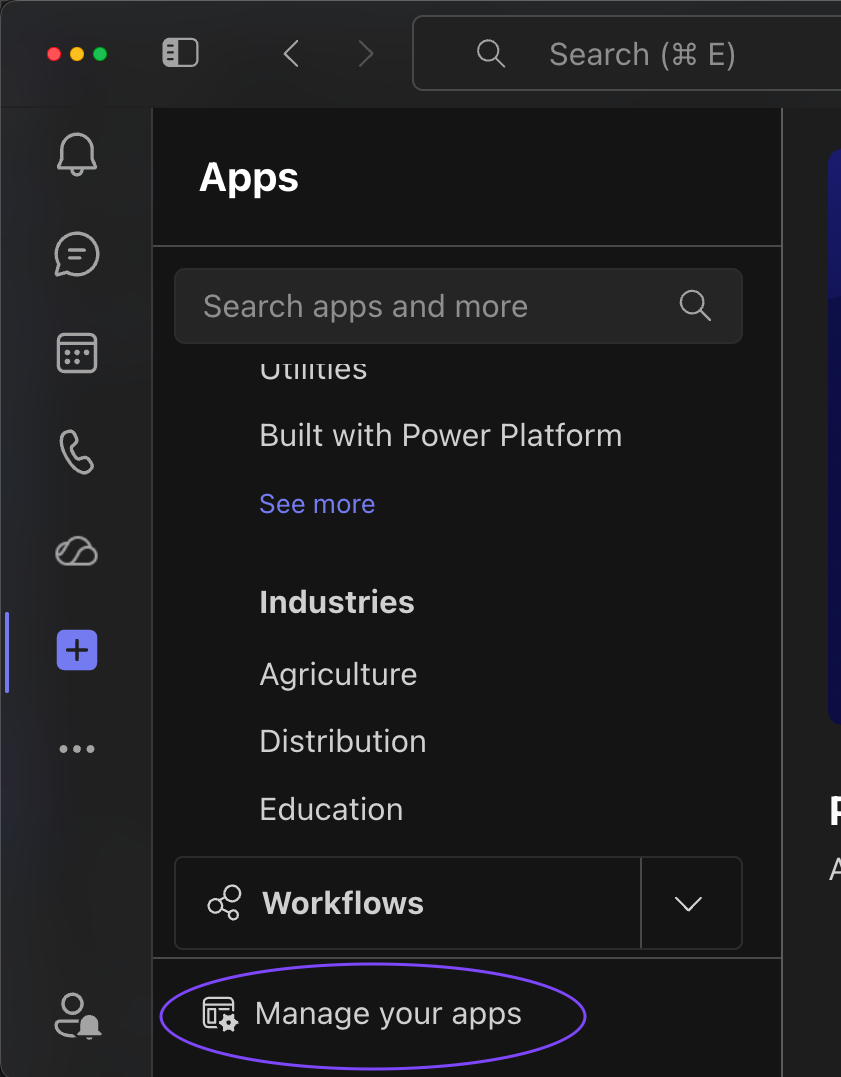
In Teams, go to Apps → Manage your apps → Upload an app → Upload a custom app and choose the file you downloaded. If you don't see that option, your Teams administrator needs to allow custom apps first (see the checklist below).
If your upload created a request instead of adding the app, your Teams administrator approves it in the Teams admin center. Approving does not install the app for anyone. In Teams apps → Manage apps, open Polar, select Edit installs and add the people who will use the bot (or everyone). If your organization manages installs with setup policies, add Polar under Setup policies → Installed apps instead. Until then the Installed for column says No one and the bot does not appear in Teams.
Make sure you can find the Polar bot in Teams (search for it under Apps). A newly uploaded app can take a few hours to appear in Teams, and other changes in the Teams admin center a few minutes.
Back in Polar settings, select Generate pairing code. The code is valid for 15 minutes and can only be used once, so generate it right before you send it.
Open a chat with the Polar bot in Teams and send it the code. The bot replies with the Polar workspace the request is for. Check the name before you continue.
In Polar settings, select Approve. The bot is now on.
Checklist for your Teams administrator
If the Polar bot doesn't appear in Teams, or doesn't reply to your pairing code, all four of these must be true in the Teams admin center:
Teams apps → Manage apps: Polar is Allowed.
Teams apps → Manage apps: Polar's Installed for column doesn't say No one. Use Edit installs to add the people who need it, or add Polar under Setup policies → Installed apps if your organization manages installs with setup policies.
Teams apps → Permission policies and Setup policies: the policies assigned to the person sending the code allow custom apps.
Teams apps → Manage apps → Org-wide app settings: custom apps are allowed.
A newly uploaded app can take a few hours to appear in Teams, and other changes a few minutes. After that, generate a new pairing code and send it again.
Use the bot
Message the bot directly for a private conversation, or add it to a channel. In a channel it reads the messages in that channel, so add it to a dedicated analytics channel rather than a busy general one.
Each conversation keeps its own context, so you can ask follow-up questions like "and the month before?" without repeating yourself.
The bot can't yet:
Send scheduled or automated messages. It only replies when you message it.
Read files or images you upload in Teams.
Limit access to specific people in your Microsoft organization.
Disconnect
Go to Settings → General → Microsoft Teams Bot and select Disconnect. The bot stops answering for that organization right away. You can reconnect later with a new pairing code.
FAQs
The bot doesn't reply to my pairing code. What should I do?
First check that you sent the code in a chat with the Polar bot itself, not in a chat with a colleague. If you did, Teams didn't deliver your message to the bot. Ask your Teams administrator to go through the checklist above, then generate a new code and send it again. If the code is more than 15 minutes old, it has expired.
The bot says the assistant is starting up. What does that mean?
Your workspace's assistant was idle and is starting. This takes a minute or two the first time. Send your question again after that.
The bot says my organization isn't connected. What should I do?
The connection was never approved, or it was disconnected. Generate a new pairing code in Polar settings and send it to the bot again.
Can I connect one Microsoft organization to two Polar workspaces?
No. Each Microsoft organization can be connected to one Polar workspace at a time. Disconnect the first one before you connect another.