Create a Polar Offline Purchase Conversion in Google Ads
Last updated: September 24, 2026
Overview
To use Polar Offline Purchase conversions with Google Ads, you first need to create the appropriate conversion action in your Google Ads account.
This guide walks you through creating the conversion, configuring it as a secondary action, and locating the Conversion Action ID you will need for your Polar setup.
Create the conversion action
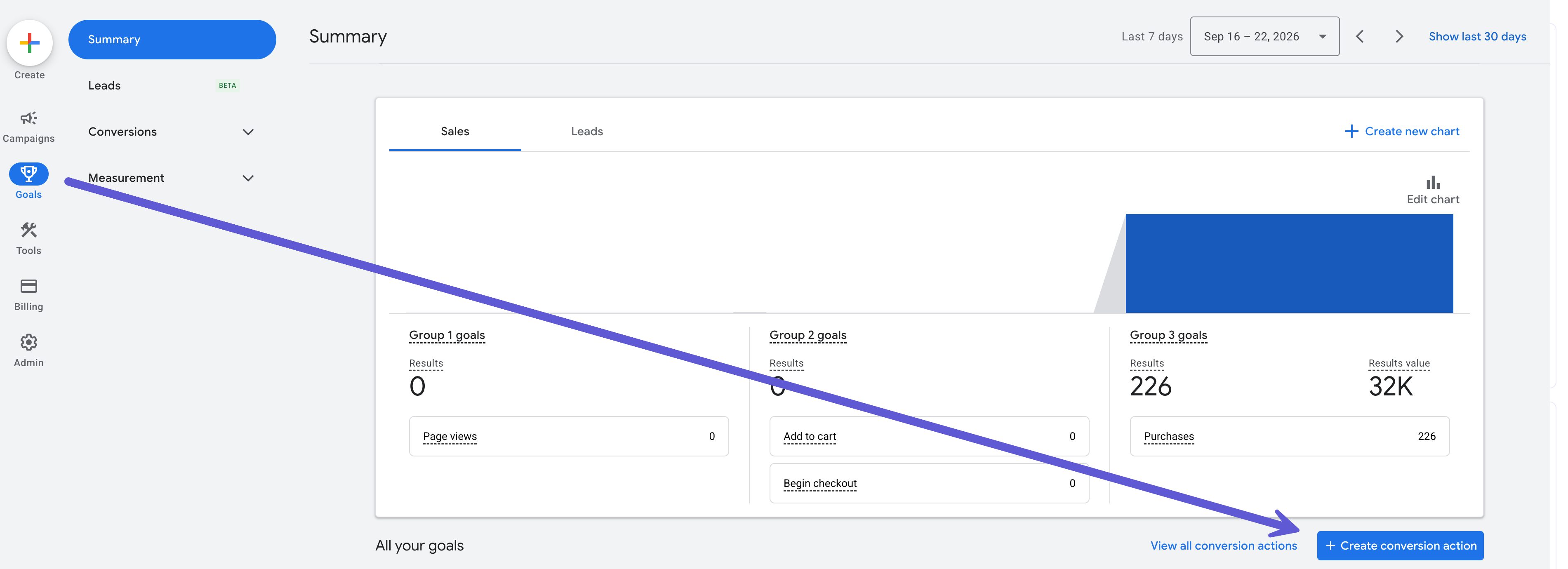
In the left-hand menu of your Google Ads account, select Goals, then click Create Conversion Action.
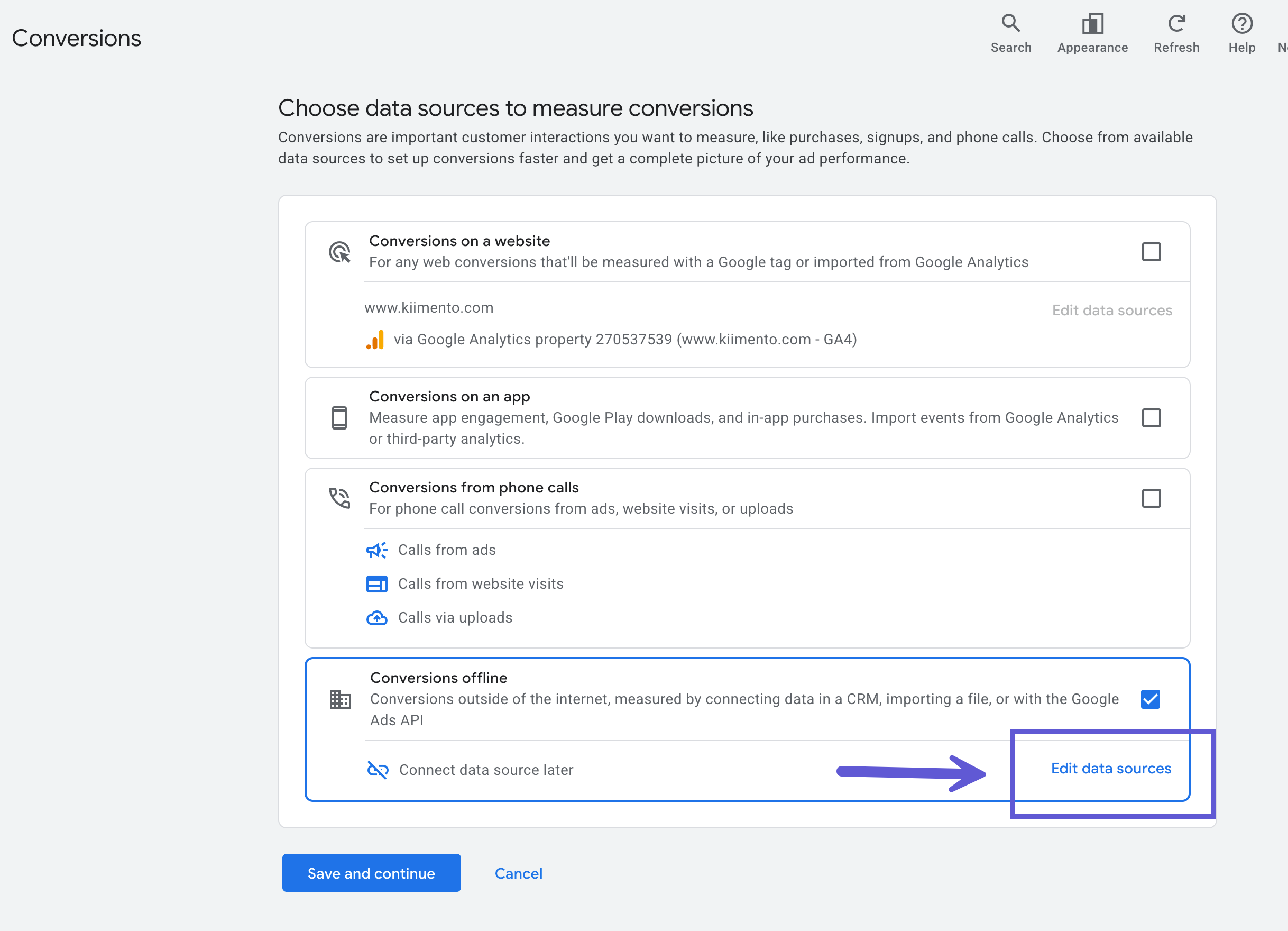
Under Choose data sources to measure conversions, select only Conversions Offline and then Edit data sources.
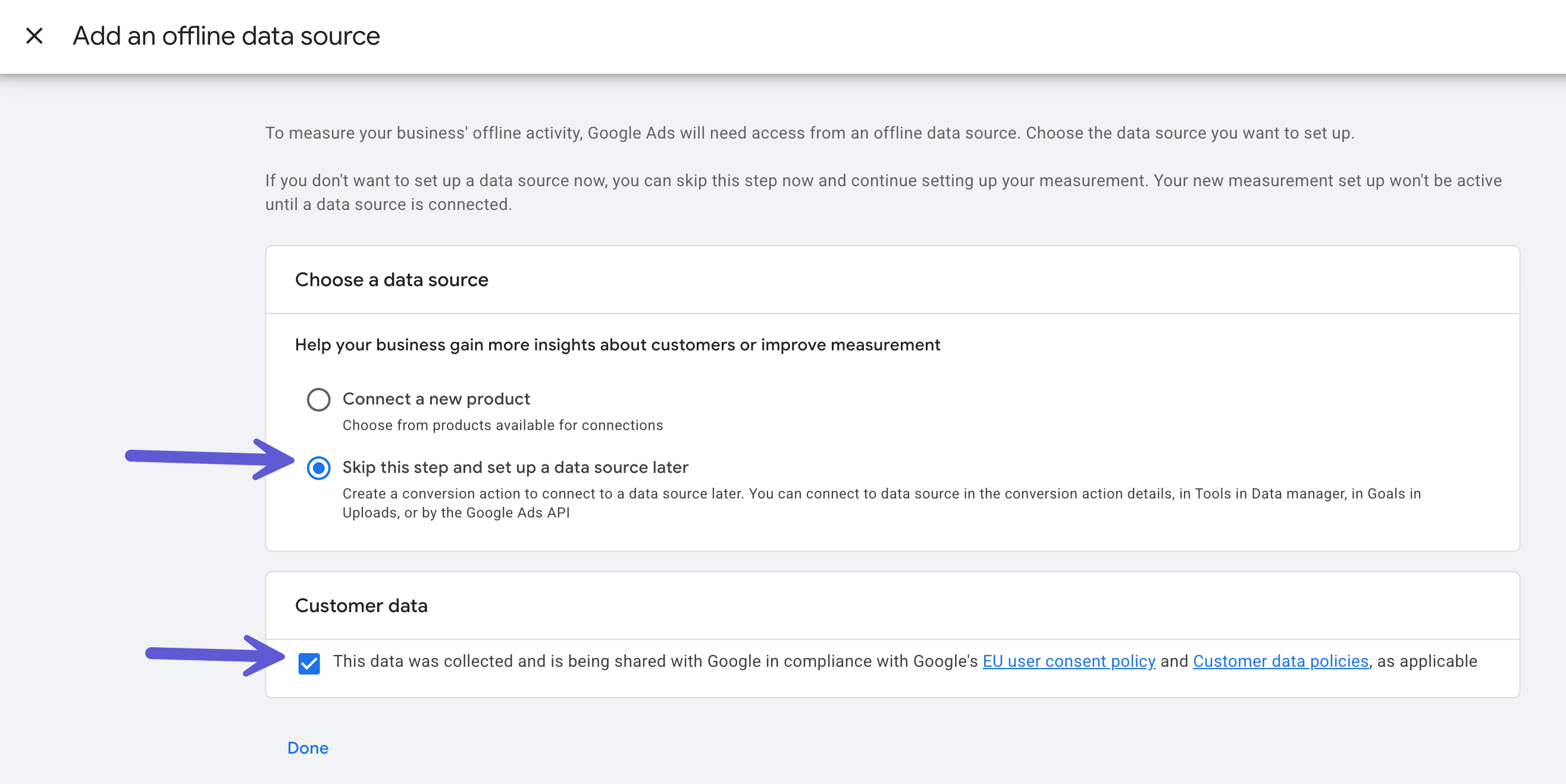
Under Add an offline data source, select Skip this step and set up a data source later and check the box under Customer data. Select Done.
Under Choose data sources to measure conversions, select Save and Continue.
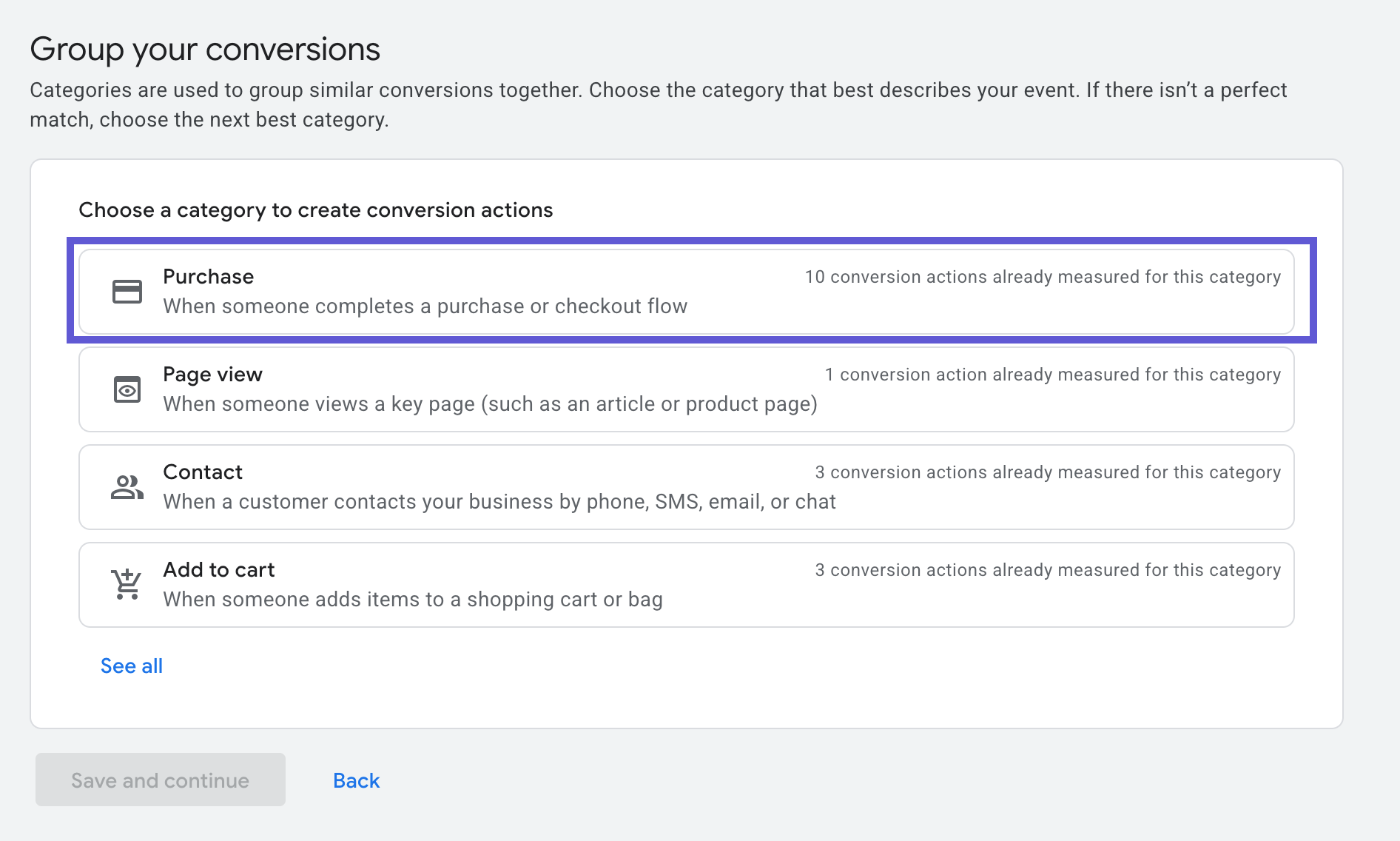
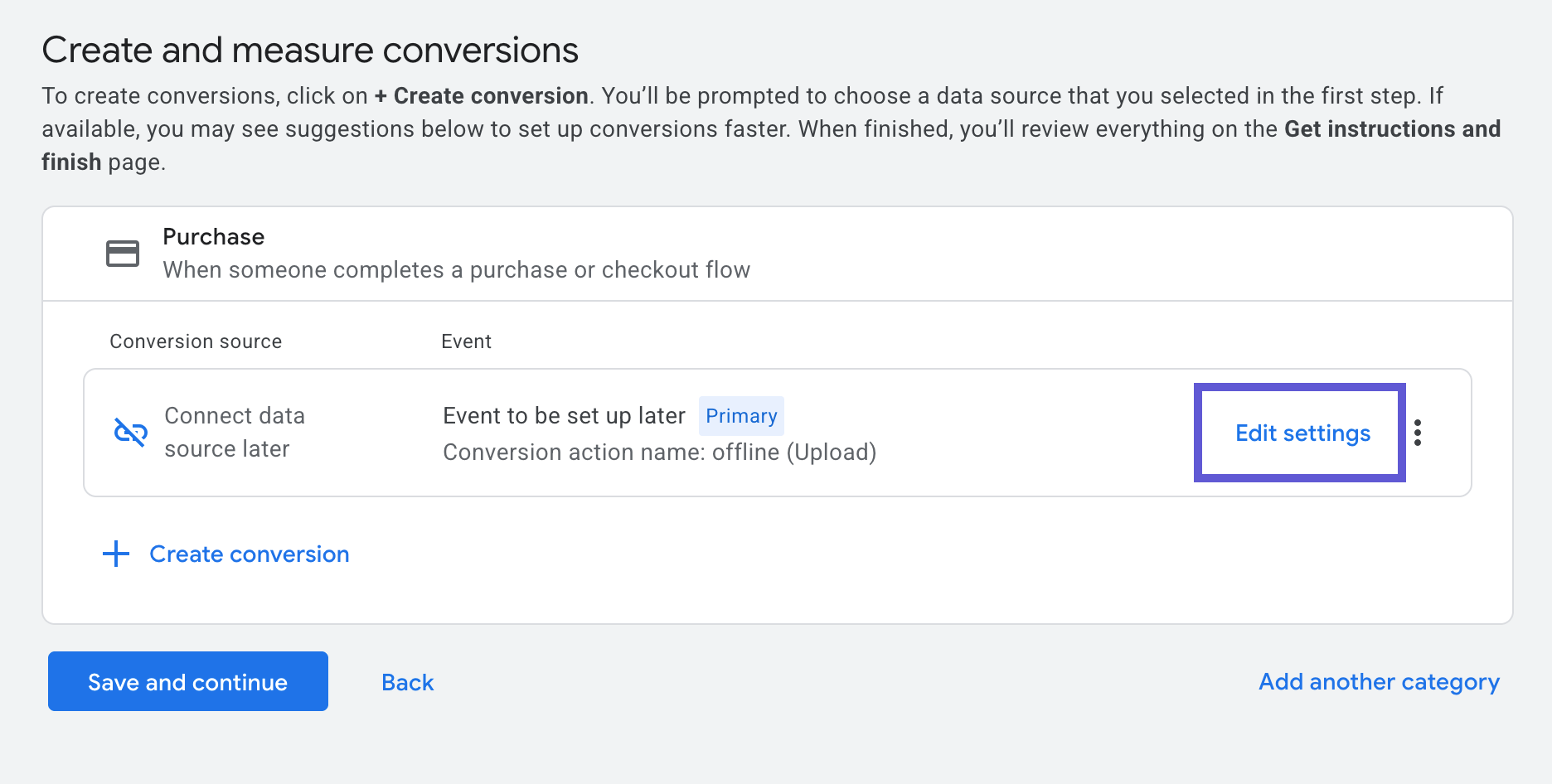
Under Group your conversion, select Purchase.
On the next page, under Create and measure conversions, select Edit settings.
In Conversion Settings: Under Conversion Action Optimization Options, select Secondary Action.
Conversion Name: Polar Offline Purchase
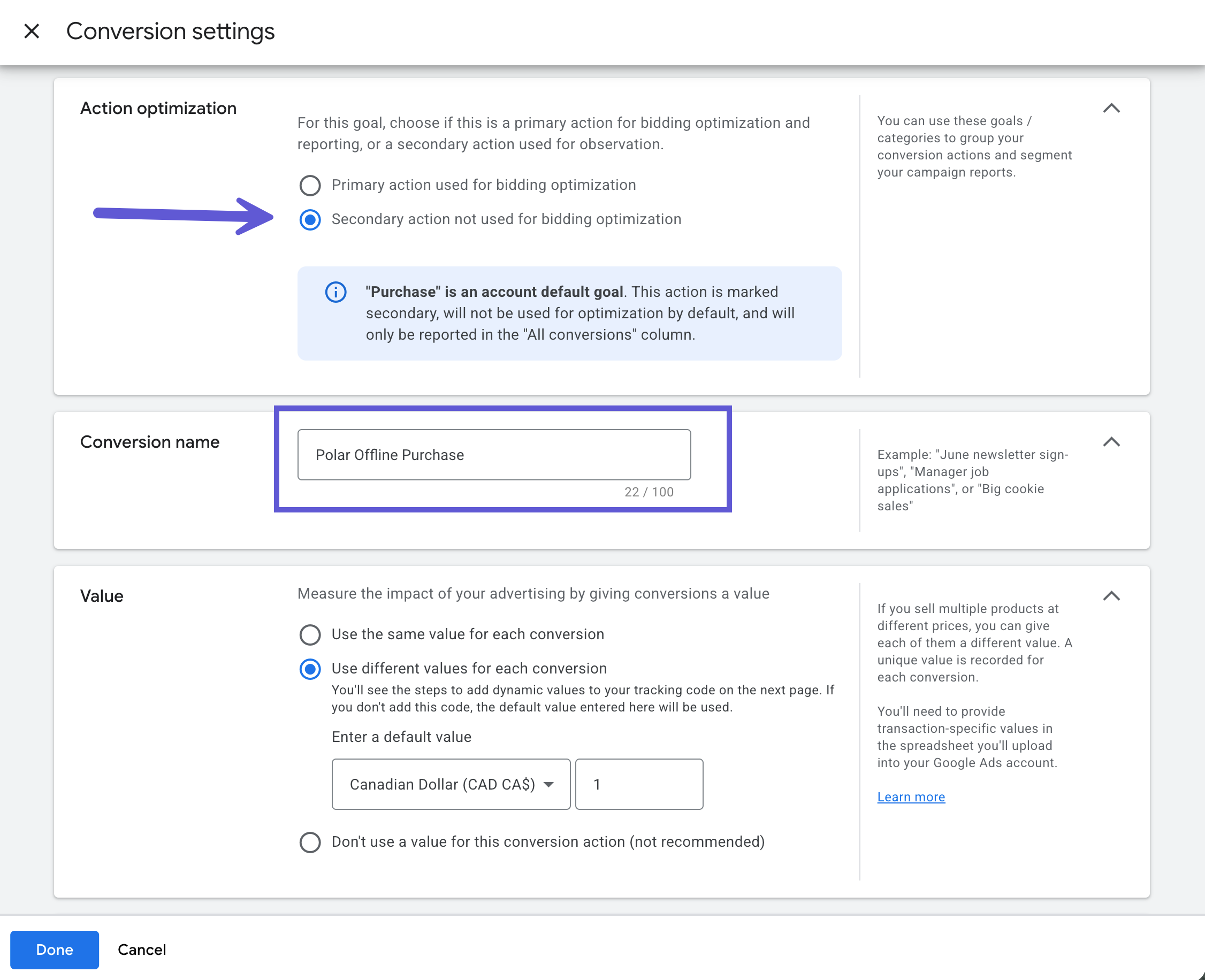
Click Done, then Save and Continue, followed by Done.
Find your Conversion Action ID
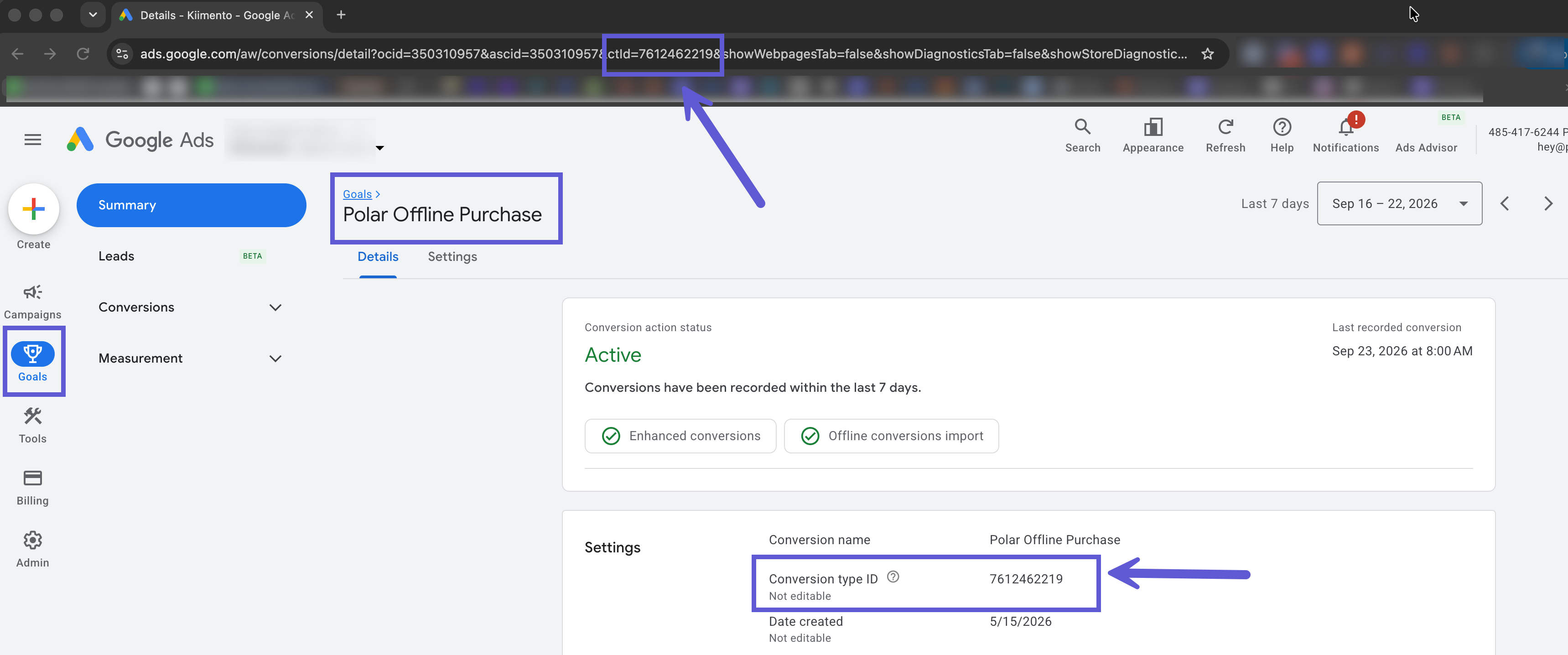
Open the newly created Polar Offline Purchase conversion.
You can find the Conversion Action ID in either of the following places:
Under the conversion's Settings, next to Conversion type ID.
In the page URL. The ID is the numerical string that appears after
ctId=.
In the example below, the Conversion Action ID shown in both locations is 7612462219.
Conclusion
Once you have created the Polar Offline Purchase conversion and located its Conversion Action ID, you have the information needed to continue your Polar setup.
Before moving on, confirm that:
The conversion is named Polar Offline Purchase.
The conversion goal is set to Purchases.
The conversion is configured as a Secondary Action.
You have copied the correct Conversion Action ID.
Finally, share the Conversion Action ID with your Customer Success Manager or Polar Support so our team can continue setting up Google Ads CAPI for your account.