Filtering product sales data
Last updated: November 3, 2026
You can filter the Product Sales table to focus on specific products, variants, vendors, customers or locations. Product Sales is in the Products tab under Ready-Made dashboards.
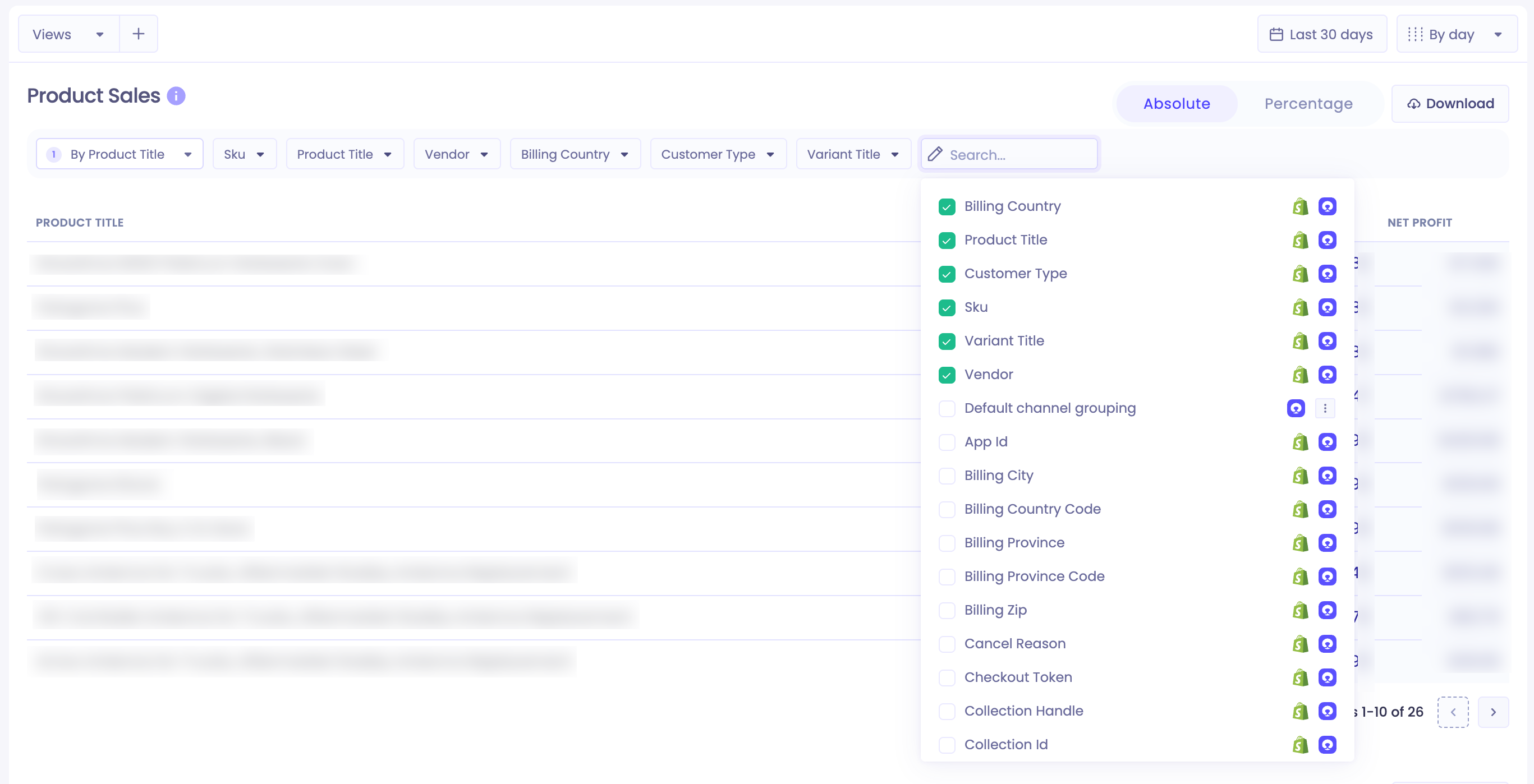
Adding a filter
Go to Ready-Made dashboards and open the Products tab.
In the Product Sales section, click the Search... field (pencil icon) at the end of the filter bar.
Find the field you want. Type in the search box to narrow the list.
Select the checkbox next to the field. The field appears as a filter in the bar.
Click the filter in the bar and choose the values you want to see.
To remove a filter, clear its checkbox in the same list.
Fields you can filter by
The list includes the fields Polar receives from Shopify, such as order, customer, billing and product details, plus any custom dimensions in your workspace. Fields from Shopify show a Shopify icon and a Polar icon. Custom dimensions show only the Polar icon. To create your own, see Understanding Custom Dimensions.
Common filters for product analysis:
Field | What it filters by |
|---|---|
Product Title | The product name |
Variant Title | The variant name, such as a size or color |
Sku | The variant's SKU |
Vendor | The vendor set on the product in Shopify |
Customer Type | The type of customer who placed the order |
Billing Country | The country in the order's billing address |